If you previously used Lightship.dev, log in to scaniverse.nianticspatial.com, and select Migrate a Lightship account to create a new account and access your projects. For more information, see the Migration guide.
Introduction
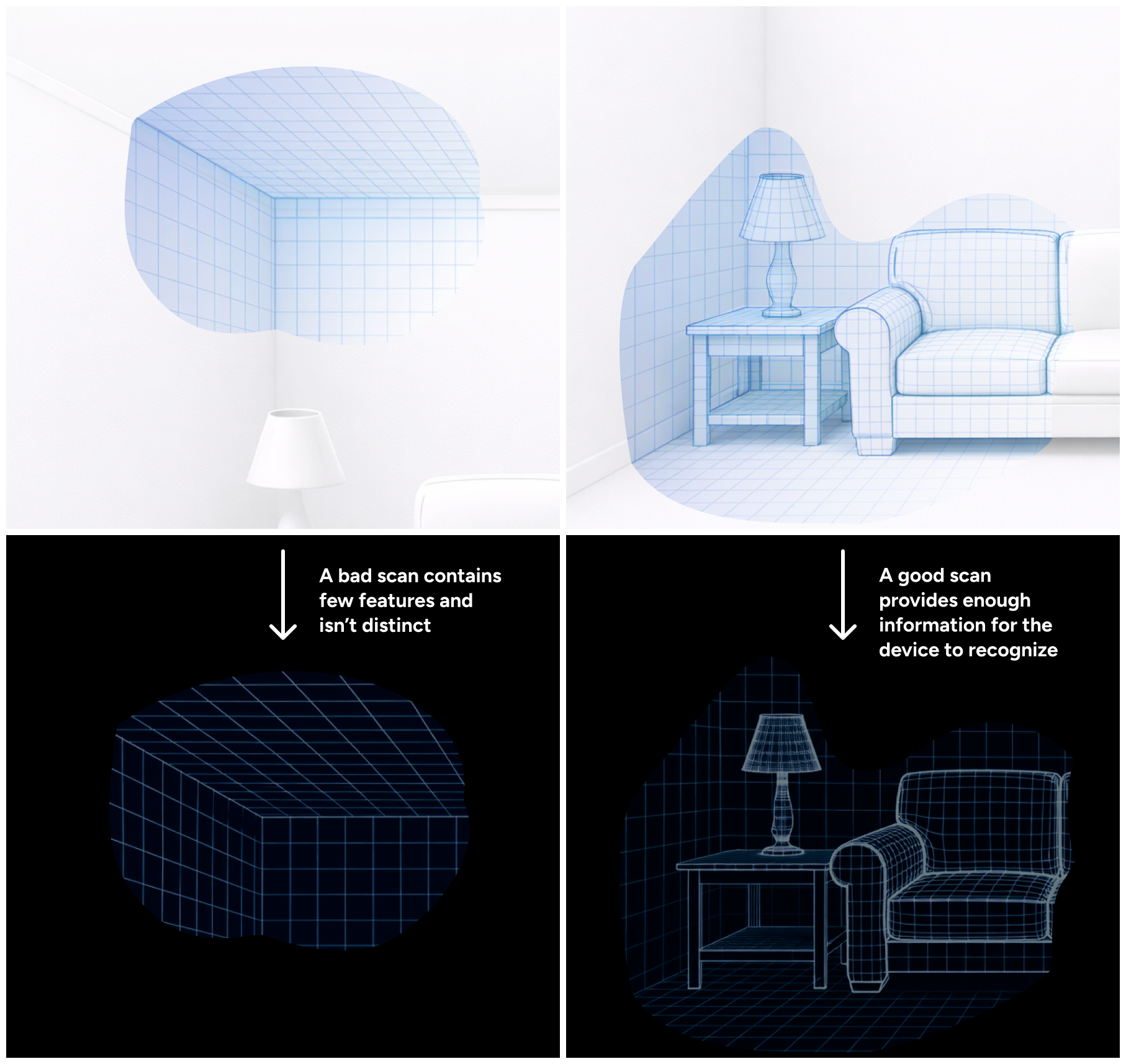
Scans capture the data Scaniverse uses to create assets for localization. Accurate scans make localization more reliable. Incomplete or inconsistent scans can cause gaps or tracking issues.
For best practices on capturing high-fidelity Mesh and Splat data, see this video
This guide shows you how to plan and capture high-quality scans using your phone including:
- How to prepare and organize your Site.
- Techniques and patterns for capturing spaces.
- Indoor, outdoor, and mixed environments.
- How to review coverage and decide where to add scans.
For 360 camera setup and capture workflows, see the 360 camera scanning guide.
This guide does not cover:
- Asset processing or internal calculations.
- Debugging uploads that failed.
- VPS deployment or configuration.
- Advanced asset tuning.
You can use the Scaniverse Web to inspect assets and review playback sessions. Reviewing your assets helps you identify gaps to add or replace scans.
How Scanning Works
Scans capture the data that Scaniverse uses to create assets. High-quality scans improve localization speed and alignment stability. Incomplete or inconsistent scans can cause localization to take longer, fail in certain areas, or appear unstable as you move through the space.
When you scan with your device, you capture:
- High- and low-resolution images.
- Device position and orientation in 3D space.
- Depth information if your device has LiDAR.
Scaniverse uses the scans to generate Assets including:
- Meshes - 3D geometry for spatial alignment and use with VPS.
- Splats - dense visual representations of a space.
Each generated Asset Version defines a spatial coordinate system for the Site. During localization, the device’s position and orientation are computed within that coordinate system, allowing digital content to align consistently with the real-world environment.
The recommended number of scans and patterns depend on your site type. See the following Recommended scan patterns section for full guidance.
Plan your scan
Planning helps you choose scanning patterns, cover all areas, and decide if multiple scans are needed. Over time, this step becomes quick on site.
Create a Site
A Site organizes all scans for a location, tracks coverage, and reduces repeated scanning, making asset activation easier.
To create a site:
- Open Scaniverse Web in a desktop or laptop browser for faster setup and easier navigation.
- Select + Create Site.
- Enter a clear, descriptive, and unique site name.
- Select Confirm.
Prepare Your Device
Good device preparation helps ensure reliable scans. Before you start:
- Fully charge your device.
- Bring one or more power banks for extended sessions or large areas.
- Close unnecessary background apps.
- Charge your device if it drops below 50% during a session. Avoid power-saving mode, which can reduce scan quality.
Survey the space
Survey the space before scanning using the following recommendations:
- View maps, satellite imagery, or floor plans to understand the space.
- Identify boundaries, transitions, and points of interest.
- Plan scan start and end points.
Core scanning techniques
Follow these principles to ensure good scanning results:
- Move your device steadily. Avoid sudden movements to prevent blur or position tracking loss.
- Keep a continuous motion, even if very slow.
- Maintain overlap with previous views of the same features.
- Capture multiple angles and distances.
- Focus on areas with distinct visual features.
Scans can fail if the system cannot connect sequential views. Each scan lasts up to five minutes, but you can capture multiple scans per site as needed.
Follow on-device guidance
Scaniverse provides live meshing feedback while scanning to indicate if the system is successfully capturing the scene.
If meshing becomes sparse or unstable, mesh visuals may appear:
- Patchy or incomplete mesh on the device screen.
- Missing sections in some areas.
- Wobbly or disappearing mesh while moving slowly.
If meshing becomes unstable, do the following:
- Slow down your movement.
- Reorient the camera toward previously scanned features.
- Increase overlap with earlier views.
Capture multiple angles and distances
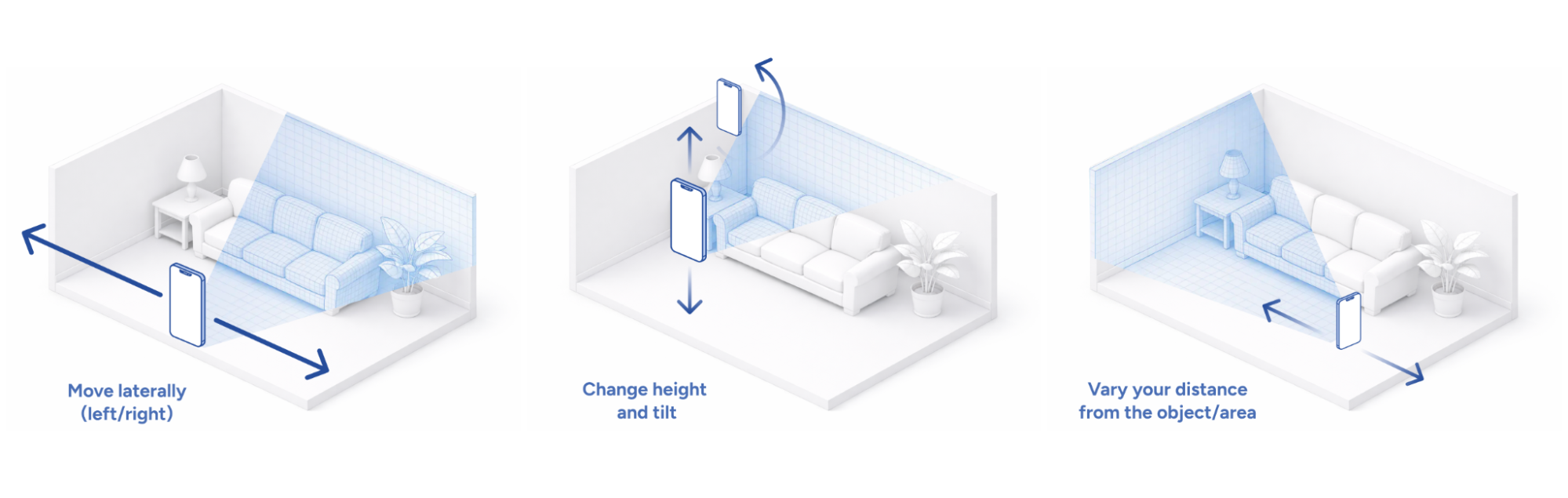
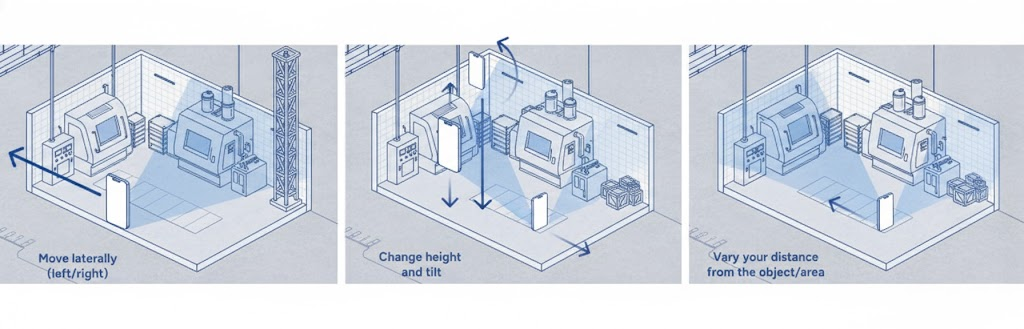
Capture each area from several viewpoints to help the system reconstruct 3D geometry.
For each object or region:
- Move the device laterally from side to side.
- Change the height and tilt.
- Vary distance from the object or area.
- Keep the camera moving continuously.
Capturing multiple viewpoints lets the system match overlapping features from different perspectives, improving localization accuracy.
Ensure sufficient overlap within and between scans Within a single scan:
- Keep previously captured features in view to help the system align frames accurately.
Across multiple scans in the same site:
- Ensure successive scans share visible features with earlier scans.
- Overlap at boundaries, doorways, and transitions to connect multiple scans into a single, consistent 3D representation.
Focus on coverage, not duration
Recording for the full five-minute limit does not automatically improve results. Scan quality depends on overlap, viewpoint diversity, and clear visual features rather than recording length. A shorter scan with strong coverage is more reliable than a longer scan with gaps or weak overlap.
Minimize problematic conditions
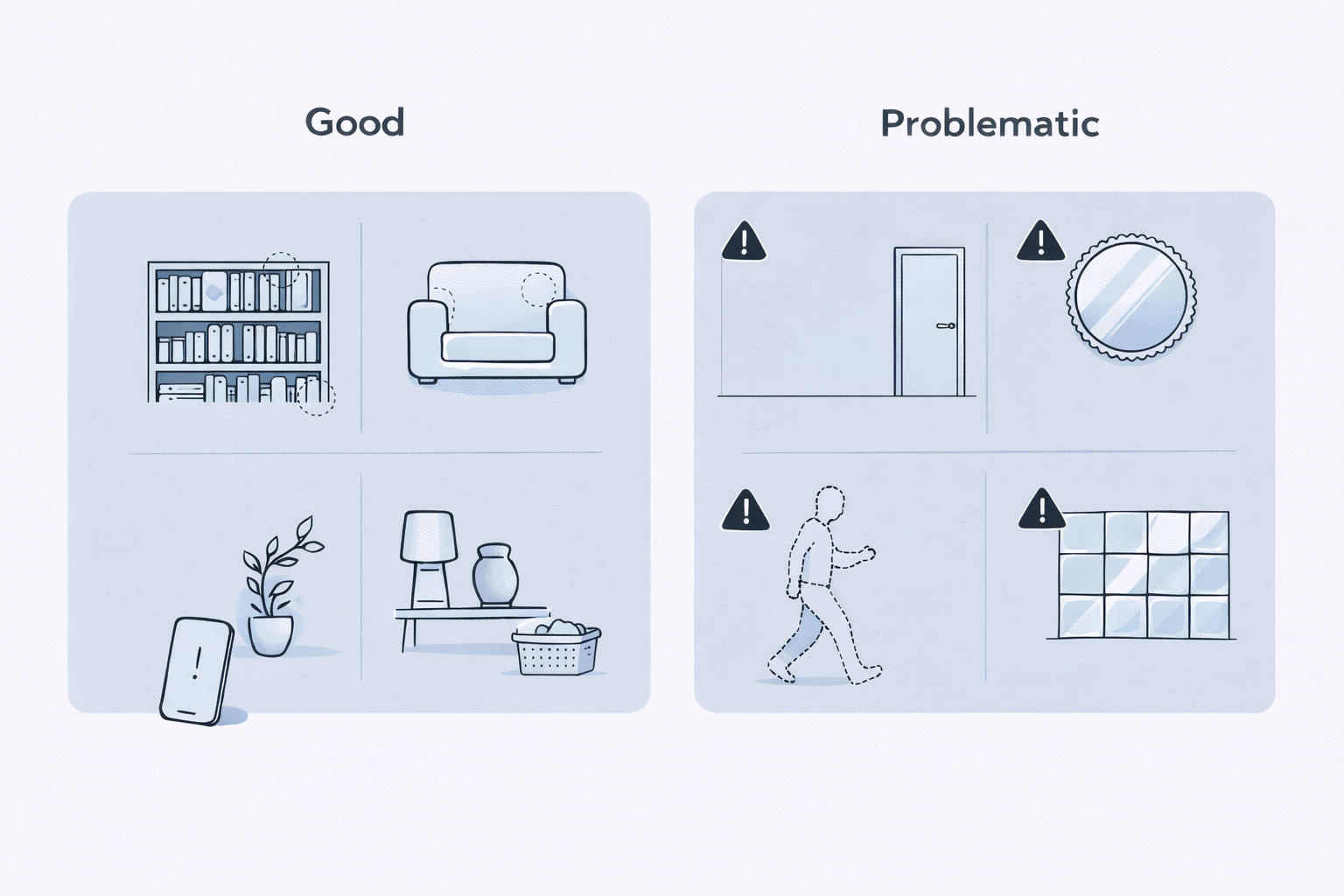
Certain surfaces and motion can reduce scan quality. When scanning, minimize:
- Repetitive surfaces including blank walls, and identical tiles.
- Featureless areas including empty ceilings or floors.
- Reflective or transparent surfaces such as mirrors, and glass.
- Moving objects including doors, people, and vehicles.
If you cannot avoid capturing moving objects, keep them out of the center of the camera view and focus on capturing stable, static features.
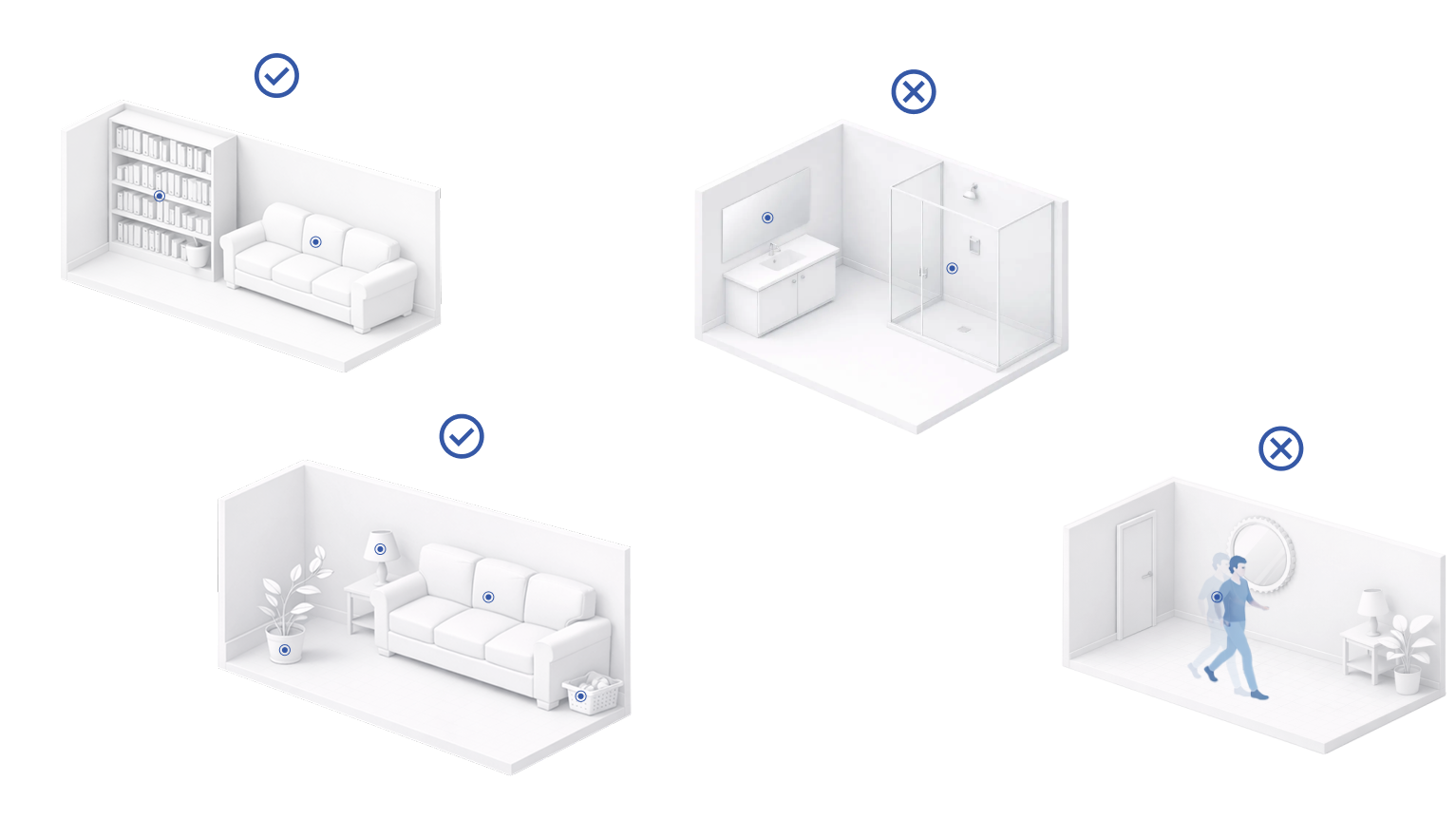
Consider lighting variation when planning scans
In most cases, you do not need to scan the same area at multiple times of day. Localization typically works well even when lighting conditions differ between scanning and use.
Capture additional scans under different lighting conditions only when:
- End users are expected to localize in significantly different lighting environments.
- The environment changes noticeably between those conditions, such as:
- Strong directional sunlight creating harsh shadows.
- Large shifts in ambient brightness, for example day versus night.
If lighting conditions are relatively consistent, or changes are minor, a single well-captured scan is typically sufficient.
Recommended scan patterns
Following a scanning pattern helps you capture complete coverage efficiently and reduces gaps. Choose a pattern based on the type and size of your site.
Details for each pattern follow the table:
| Site Type | Suggested Pattern | Notes |
|---|---|---|
| Single Room | Overview Scan | Walk the perimeter and capture ceiling, floor, and corners. Add detail scans where needed. |
| Object or Landmark | Orbit | Move around the object at varying distances and angles. |
| Multiple Connected Rooms | Overview per room | Ensure overlap through doorways and transitions. |
| Large Outdoor Area | Perimeter + Lattice/Grid | Start with a perimeter loop, then fill interior coverage with a grid or crisscross passes. |
| Indoor + Outdoor Combined Site | Separate scans per zone | Pause at thresholds and ensure shared features are visible at transitions. |
You can combine patterns for complex sites or when different areas require different approaches. Following these guidelines ensures scans connect properly, providing accurate localization and complete 3D coverage.
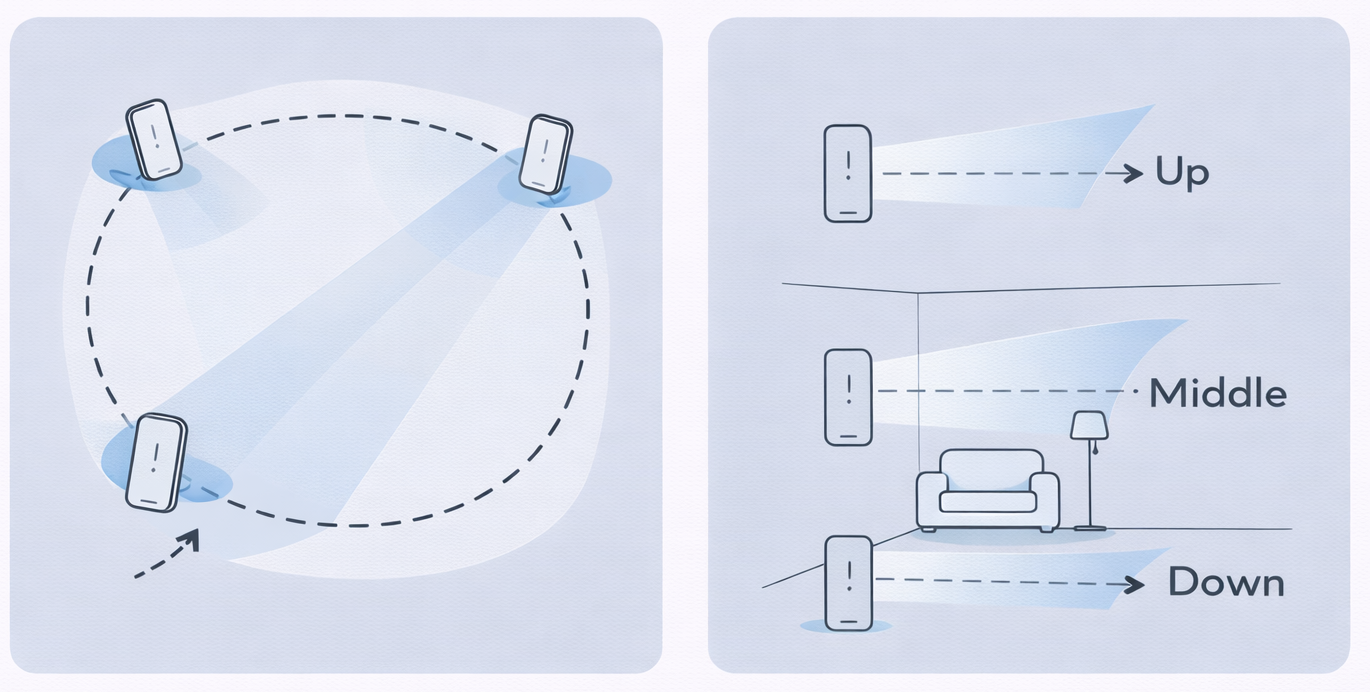
Overview scan
An overview scan provides a base localization layer for a room or enclosed space.
To perform an overview scan:
- Stand near the perimeter of the room.
- Walk along the perimeter while keeping the camera pointed towards the interior.
- Move at a steady pace without stopping.
- Complete the space in three passes:
- Hold the device level to capture mid-level features such as walls and furniture.
- Tilt the device upwards to capture the ceiling.
- Tilt the device downwards to capture the floor.
During each pass, keep previously captured features visible in the frame so the system can connect the views.
Large rooms may require more than one overview scan to fully cover the space.
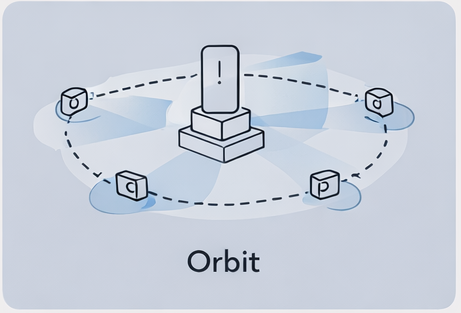
Orbit pattern
Use an orbit pattern when scanning a single object or point of interest such as furniture, statues, or monuments.
How to perform an orbit scan:
- Stand a short distance from the object.
- Walk around it in a circular path.
- Keep the object centered in the frame as you move.
- Maintain a consistent distance while circling.
Avoid stepping straight toward or away from the object repeatedly. Instead, move laterally around it to capture continuous side-to-side variation in perspective.
For larger objects, complete more than one circle at different distances to capture additional context and background features.
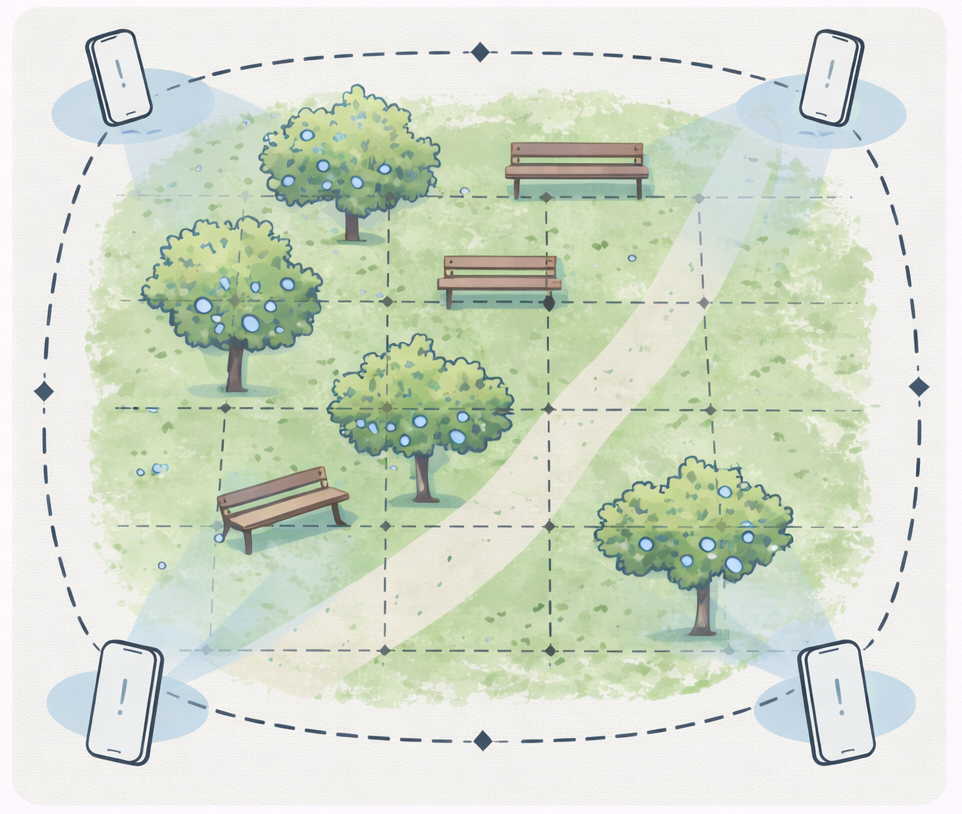
Perimeter loop pattern
Use a perimeter loop pattern for large outdoor spaces or long boundary areas such as courtyards, plazas, or building exteriors.
How to perform a perimeter loop scan:
- Walk along the outer boundary of the area.
- Keep the camera pointed inward toward the space.
- Move steadily while sweeping the device slightly left and right.
- Keep boundary features visible in the frame as you progress.
For stronger coverage, complete one pass clockwise and another counterclockwise. Opposite directions increase viewpoint diversity and improve alignment across the site.
Lattice grid pattern
Use a lattice grid pattern for large continuous areas after completing perimeter coverage.
How to perform a lattice grid pattern:
- Complete one or more perimeter loop scans around the boundary.
- Walk straight passes across the interior of the area.
- After each pass, shift sideways and walk a parallel pass in the opposite direction.
- Continue until the entire interior is covered.
- Keep previously captured boundary features visible when entering and exiting each pass.
Interior passes should overlap both the perimeter coverage and adjacent passes to maintain alignment across the site.
Use the table below to choose the most effective scanning pattern for your Site type. Each pattern shows the recommended approach and key notes for capturing complete coverage.
| Site Type | Recommended Pattern | Notes |
|---|---|---|
| Single enclosed space | Overview Scan | Perform an overview scan using three passes to capture ceiling, floor, and mid-level surfaces. |
| Object or landmark | Orbit | Move around the object at varying distances and angles to capture all sides. |
| Long boundary or room sequence | Perimeter Loop | Walk the boundary while capturing features along the edges, include multiple passes if needed. |
| Large open area | Perimeter + Lattice | First perform a perimeter loop, then cover interior with crisscross paths to maintain overlap. |
| Indoor + Outdoor Combined Site | Separate scans per zone | Pause at thresholds, ensure features from both areas are visible for smooth alignment. |
Use Cases
Indoor
Single Rooms
A single room is an enclosed space where you can capture all surfaces and objects in one session as follows:
- Perform an overview scan to obtain full coverage of the room.
- Scan important objects or areas more carefully to capture extra detail.
- Start and end focused scans from views captured in the overview.
- Include ceilings, floors, corners, and transitions in all scans.
Multiple Rooms
Multiple rooms are a series of connected spaces where scans should maintain overlap between rooms as follows:
- Scan doorways and hallways thoroughly. These areas act as structural connectors between rooms, and weak coverage here can cause unstable alignment between spaces.
- Ensure each room scan overlaps with visible features in neighboring rooms.
- Avoid scanning rooms in isolation.
Multiple Floors
Multiple floors are vertical spaces where you need to capture shared features across levels as follows:
- Scan staircases completely. Stairways connect vertical spaces, and insufficient coverage can cause misalignment between floors.
- Keep shared features visible between floors.
- Move slowly when changing elevation to preserve scan accuracy.
Outdoor
Specific point of interest
A specific outdoor site or point of interest is a distinct object or area where you need detailed coverage as follows:
- Perform orbit scans at varying distances and angles around the object.
- Include surrounding context to help with localization.
- Avoid capturing only tight close-ups without wider references.
Large continuous outdoor areas
A large continuous outdoor area is a broad open space that requires multiple passes to ensure complete coverage as follows:
- Perform a perimeter scan clockwise around the area.
- Perform a perimeter scan counterclockwise to improve coverage and alignment.
- Add interior passes in a lattice or grid pattern to fill gaps.
- Break down the site into smaller sections if the area is too large for one scan. Ensure strong overlap at boundaries so the sections connect consistently. Extremely large continuous coverage can reduce alignment stability and make gaps harder to diagnose.
Mixed
An indoor and outdoor combination site contains connected indoor and outdoor areas where scans need to align across environments as follows:
- Pause briefly at thresholds such as doors or entrances. These transition zones connect separate environments, so ensure features from both sides remain visible to maintain consistent alignment.
- Ensure features from both indoor and outdoor areas are visible at transitions.
- Adjust scanning pace for lighting changes, moving slower in darker areas.
- Maintain overlap with previous scans to connect multiple zones into a consistent 3D representation.