Getting Started with VPS
When using Unity, the Niantic Spatial SDK (NSDK)s package provides a configurable component to help you create and manage your VPS enabled AR experience.
The AR Location Manager
The AR Location Manager allows you to easily persist content at Public Locations.
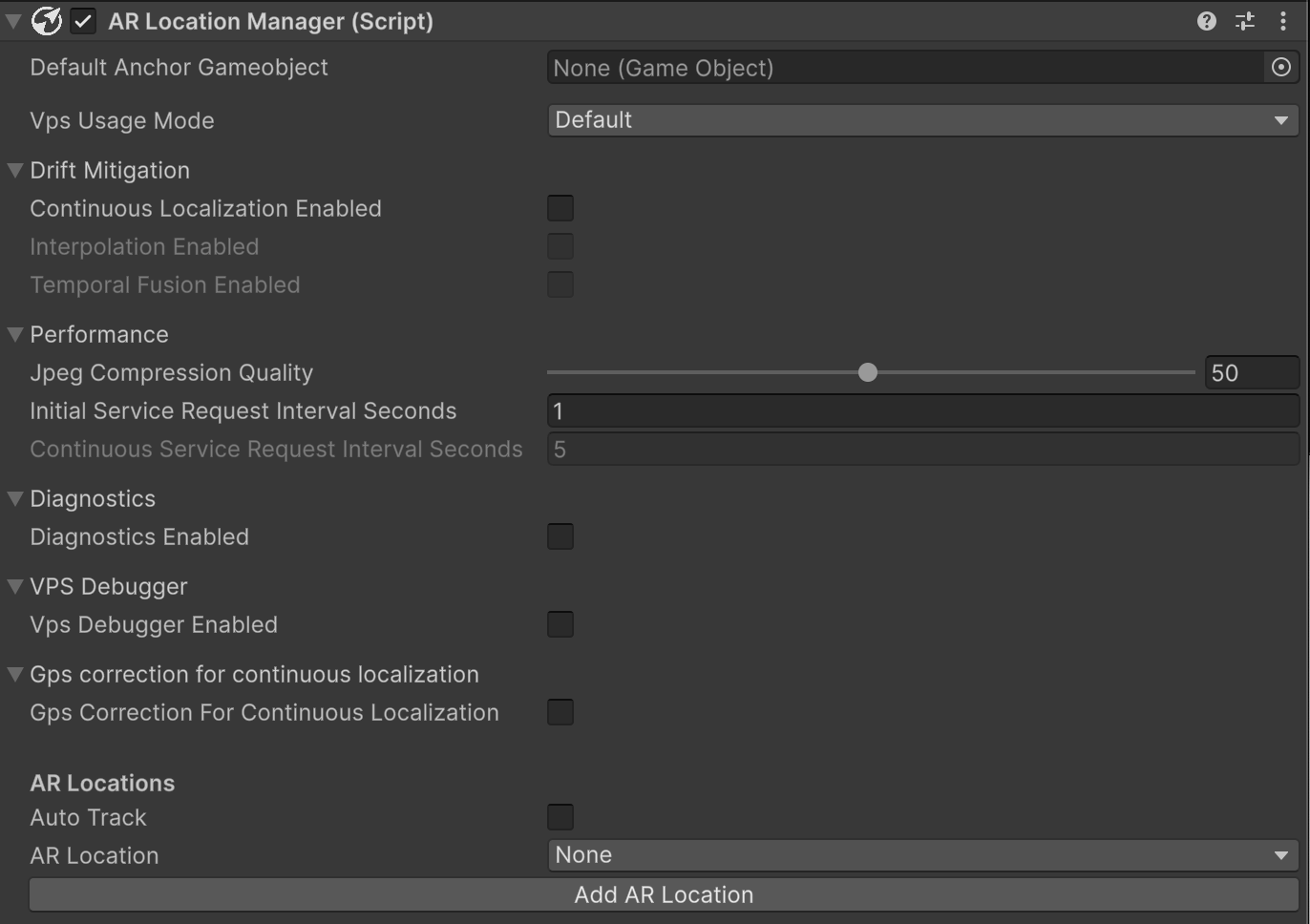
- Default Anchor GameObject: This will take a gameObject prefab and instantiate it at the ARLocation’s default anchor position once localized as an easy way to visualize the process.
- VPS Usage Mode: Preset configurations for the VPS Manager.
Drift Mitigation Options:
- Continuous Localization: Continue to send localization requests after localization. This mitigates drift but consumes more bandwidth. If enabled then you can also use:
- Interpolation Enabled: Interpolates anchors positions instead of snapping them in place.
- Temporal Fusion Enabled: Average/fused multiple localization results to provide a more stable localization.
Performance:
- JPEG compression Quality: (Default: 50) 0-100 value, determines the quality of the JPEG image sent to the servers for cloud localization. The lower quality can save more network bandwidth usage. We have benchmarked that 50-90 quality for jpeg compression does not significantly impact the accuracy of the localization results.
- Initial Service Request Interval Seconds: Number of seconds between server requests.
- GPS Correction for Continuous Localization: If checked, VPS localization will use estimated GPS location from previously localized information instead of device GPS read. Intended for large and poor GPS area localization.
Debugging Options:
- Diagnostics Enabled: If checked, VPS localization will run image classification which outputs the probability of each “failure cause” category, for example: image too dark, moving too fast or looking at ground. This feature is GPU intensive and Android devices often struggle and slow down rendering performance.
- VPS Debugger Enabled: If checked, Lightship will create a log file with detailed events related to VPS localization. This can be helpful to investigate issues in VPS localization.
VPS Startup Behavior:
- Auto Track: If checked, the location manager will automatically try to localize to the AR Location selected.
- AR Location: AR Locations available in the scene.
- Add AR Location: This will create an AR Location GameObject in the hierarchy which will then show up on the AR Location list. Note that this will not be valid until you assign a location manifest or Payload to it.
AR Location
The AR Location game object is a representation of a real-life location. In the hierarchy the game object holding this component must be a child of XR Origin, and child objects of the AR Location will be connected to the location and appear relative to it when localization succeeds.

- Include Mesh in Build: if enabled and an AR Location Manifest is assigned, you’ll be able to see the mesh of the location on Editor.
- AR Location Manifest: allows you to assign a location mesh (available on the GeoSpatial Browser).
- Payload: string blob representing the location.