How to Download a Mesh Using the API
With the Mesh Downloading API, you can download and create a mesh of any Public Location at runtime. Its optional parameters provide ways to customize how it works, some of which are explored in this How-To.
Prerequisites
You will need a Unity project with ARDK installed and an AR scene with Location AR. For more information, see Installing ARDK 3 and How to Place Content in Real-World Locations Using Location AR. Your project must have an ARLocation for this How-To.
Getting Ready in Unity
Before using the Mesh Downloading API, you will need to add a Location Mesh Manager Component and an associated script that will download the mesh.
To create the Location Mesh Manager and mesh downloading script:
-
Add
GameObjectsto hold the manager and script:- In the Hierarchy, right-click in your AR scene, then select Create Empty and name the new
GameObjectLocationMeshManager. Repeat these steps, but name the second objectMeshDownloadHowTo.
- In the Hierarchy, right-click in your AR scene, then select Create Empty and name the new
-
Select
LocationMeshManager, then, in the Inspector, click Add Component and add a Location Mesh Manager.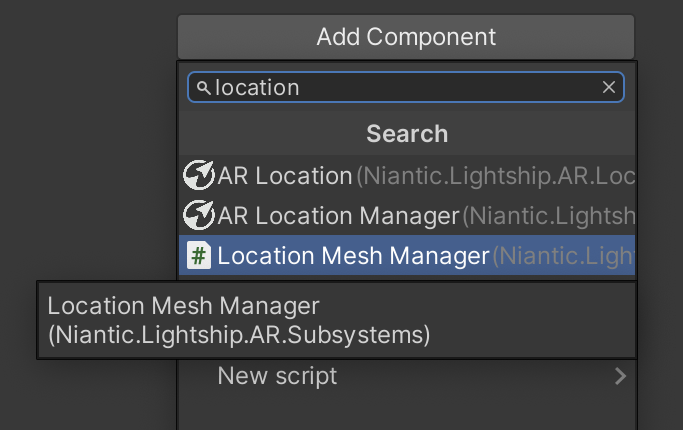
-
Select
MeshDownloadHowTo, then, in the Inspector, click Add Component and add a New Script. Name itMeshDownloadHowTo.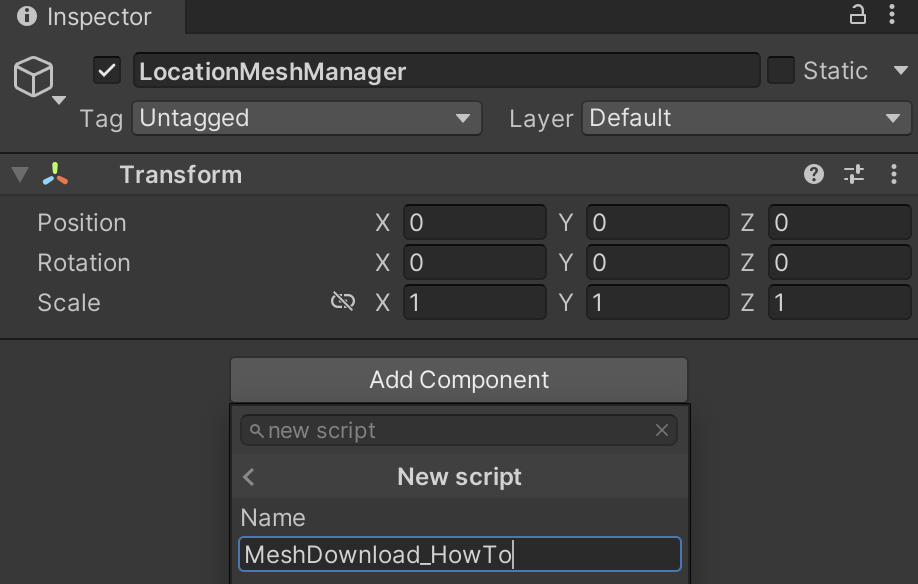
Downloading a Mesh Using an AR Location Payload
With the Location Mesh Manager ready, you can use the API to download a mesh and set its position at runtime. In this example, you will do this using an ARLocation payload to place the mesh on top of the real world in that location. This will generate a GameObject with the mesh populated that you can use or modify like any other. For example, you might have the mesh download and appear when the user pushes a button or pass it to some other function for collision detection.
To get started, open MeshDownloadHowTo.cs, then replace the code with the following code:
Click to reveal the Mesh Download function
using System.Threading.Tasks;

using Niantic.Lightship.AR.LocationAR;
using Niantic.Lightship.AR.PersistentAnchors;
using Niantic.Lightship.AR.Subsystems;

using UnityEngine;

public class MeshDownloadHowTo : MonoBehaviour
{
  [SerializeField]
  private LocationMeshManager _meshManager;

  [SerializeField]
  private ARLocationManager _arLocationManager;

  private GameObject _downloadedMesh;
  private bool _startedDownload;

  private void Start()
  {
    _arLocationManager.locationTrackingStateChanged += OnLocationTrackingStateChanged;
  }

  private void OnLocationTrackingStateChanged(ARLocationTrackedEventArgs args)
  {
    if (args.Tracking && !_startedDownload)
    {
      _startedDownload = true;
      _ = DownloadAndPositionMeshAsync(location: args.ARLocation);
    }
  }

  private async Task DownloadAndPositionMeshAsync(ARLocation location)
  {
    var payload = location.Payload;

    // wait async for the mesh to download so it doesn't block the main thread
    var go = await _meshManager.GetLocationMeshForPayloadAsync(payload.ToBase64());

    // set the mesh as a child of the ARLocation's position and place it in the scene
    go.transform.SetParent(location.transform, false);
    _downloadedMesh = go;
  }

  private void OnDestroy()
  {
    if (_downloadedMesh)
    {
      Destroy(_downloadedMesh);
    }
  }
}
Adjusting the Mesh at Runtime
Once your mesh is downloaded, you can adjust it using the API options. In this example, you will use the API to get a textured mesh and lighten its transparency. By placing it using an ARLocation payload, you can create a transparent mesh overlay of any existing Public Location at runtime.
Before updating the script, create a Material that supports transparency and add it to LocationMeshManager:
-
In the Project window, right-click in the Assets directory, then open the Create menu and select Material. Name the new material
trans_light. -
Select
trans_light, then, in the Inspector, set the Rendering Mode to Transparent.
-
In the Hierarchy, select
LocationMeshManager, then addtrans_lightto the Textures Mesh Material field. Then, in the Project folder, navigate to Packages->Niantic Lightship AR Plugin->Assets->Materials and drag thevertex_colormaterial on the Vertex Color Material field.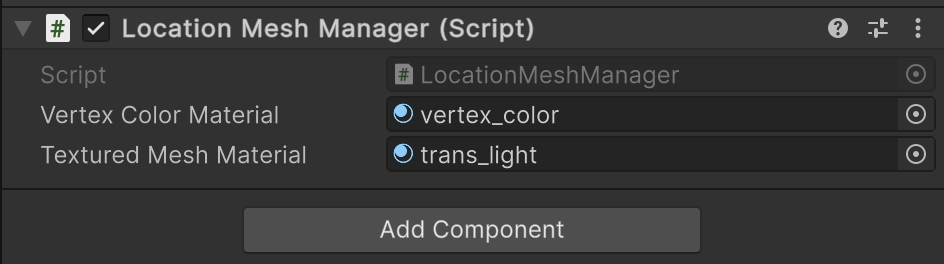
Open MeshDownloadHowTo.cs, then update the DownloadAndPositionMeshAsync function with the following code:
Click to reveal the updated Mesh Download function
private async Task DownloadAndPositionMeshAsync(ARLocation location)
{
    var payload = location.Payload;
    // Use a textured option for the mesh download
    var go = await _meshManager.GetLocationMeshForPayloadAsync(payload.ToBase64(), meshFormat: MeshDownloadRequestResponse.MeshAlgorithm.TEXTURED);
    go.transform.SetParent(location.transform, false);

    // Get the mesh renderers and set the transparency of the material to 0.5
    foreach (var meshRenderer in go.GetComponentsInChildren<MeshRenderer>())
    {
        var mat = meshRenderer.material;
        if (mat != null)
        {
            var color = mat.color;
            color.a = 0.5f;
            meshRenderer.material.color = color;
        }
    }
    _downloadedMesh = go;
}
Using Materials to Change a Mesh
By supplying different materials in the Unity Editor to the manager that controls the mesh, you can modify the mesh's traits using code instead of in the editor. By default, the API exposes two different types of mesh: VERTEX_COLOR and TEXTURED. Vertex-colored meshes are faster to download, but require a material that handles colored vertices to render properly. (We provide a shader and material that can do this. Look for VertexColor.shader and vertex_color.mat in Unity!) Textured meshes can be rendered with the standard Unity material (or any other that handles textures), but including texture information increases download size.
In particular, we recommend using this feature to create a transparent mesh for debugging so that you can see if it overlays properly in real time.
Known Issues
- Not all mesh types are available at each location. Specifically, coverage meshes are not available at private locations. If the requested mesh type is not available, the API will return
nullor an empty result for the mesh. - Some meshes can be quite large. If download size or runtime performance is a concern, consider setting a maximum download size.
More Information
- For general information, see the Mesh Download section in the VPS feature page.
- For details and more optional parameters, see the Mesh Download API Reference.
- To see Mesh Downloading in action, try out the VPS Coverage API sample.