Getting Started with WPS
Adding WPS to a Unity Project
To add WPS to a Unity project:
- In the Hierarchy, select the
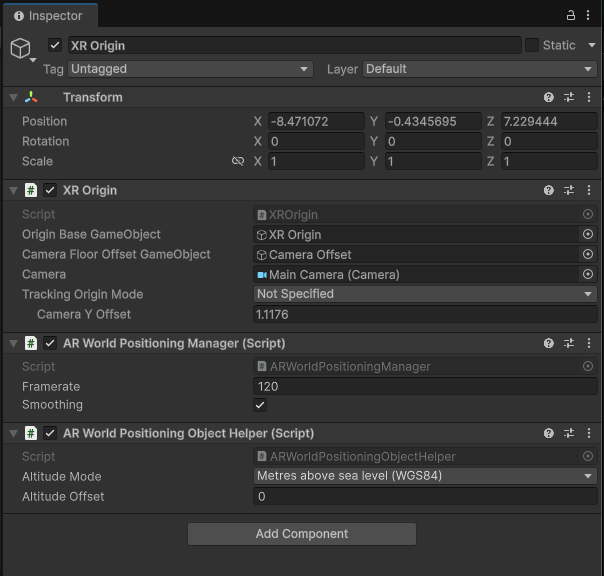
XROrigin, then, in the Inspector, click Add Component and add an ARWorldPositioningObjectHelper to it. This will also create a ARWorldPositioningManager Component. - Still in the Hierarchy, expand the
XROriginandCamera Offsetto expose theMain Camera, then select it. In the Inspector, locate Clipping Planes under Camera and set the Far value to 1000.
This is shown below:
WPS Parameters
Within the ARWorldPositioningManager component, Framerate describes the target rate at which GPS and Compass measurements are consumed by the algorithm. The default value is set to 120 times per second. The Smoothing parameter enables smooth interpolation between transform updates: when the world positioning system updates its estimate from one transform to another, it will smoothly interpolate to the new transform over time instead of instantly teleporting to it. This provides a more natural and visually stable experience, especially when GPS or compass readings update abruptly.