Adding Occlusion to Your Project
Occlusion in NSDK
The Niantic Spatial Unity SDK (NSDK) extends the AR Foundation XROcclusion and XRMeshing subsystems with Niantic Spatial's improved algorithms, seamlessly providing developers with a better experience while preserving the easy workflow of ARFoundation. NSDK also provides an implementation that allows for swapping between dynamic and mesh-based occlusion depending on the needs of your application. This implementation works on any device or platform, regardless of lidar capability!
Types of Occlusion
The AROcclusionManager and ARMeshManager provide three modes of occlusion support:
- Instant Dynamic Occlusion:
- The default occlusion mode offered by
AROcclusionManager. - Good at capturing fast-moving objects, like people or pets.
- Just-in-time occlusion will not always line up with meshing and may over/under-occlude meshed objects.
- To increase performance, occlusion can be disabled on meshes that do not need it.
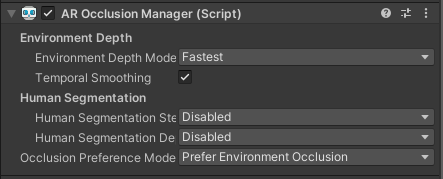
To use instant occlusion, add an AROcclusionManager to your scene:
- Mesh Occlusion (Stable, Slow Occlusion):
- Mesh-based occlusion is more stable and produces cleaner results than Instant Dynamic Occlusion, but updates less frequently.
- Mesh-based occlusion averages a range of depth measurements, making it more accurate for static regions of the environment.
- Because it updates less frequently, dynamic agents (like people and pets) may occlude less reliably.
To use mesh-based occlusion:
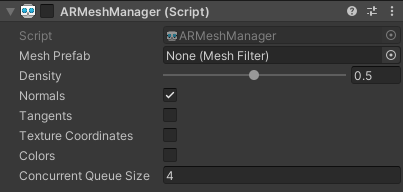
- Add an
ARMeshManagerto your scene, and make the mesh geometries invisible by either disabling the component or by using a shader. Adding anARMeshManagercomponent changes the scale of the game object, so make sure to add the component to a child object of the Main Camera to avoid scale discrepancies. - Add an
AROcclusionManagerto your scene with the Occlusion Preference Mode set to No Occlusion. This component is required to generate the mesh but will not be used for occlusions.
- Instant Depth + Mesh-Blended Occlusion:
- Occlusion Stabilization has the advantages of both modes. It combines the fast response time of instant occlusion with the stable averaging effect of meshing.
- A depth map is produced from the
ARMeshManagerenvironment mesh, rendered to a texture, and combined with theAROcclusionManagerinstant depth features in a way that avoids flicker and Z-fighting.
To use this mode, add a Lightship Occlusion Extension to your scene and enable Occlusion Stabilization.
Lightship Occlusion Extension
The Lightship Occlusion Extension improves the visual quality of NSDK occlusions by providing more options and functionality. Using a combination of depth and semantic information, the extension allows you to define regions where AR objects will not be occluded, as well as adding options to refine the occlusion mode based on your needs.
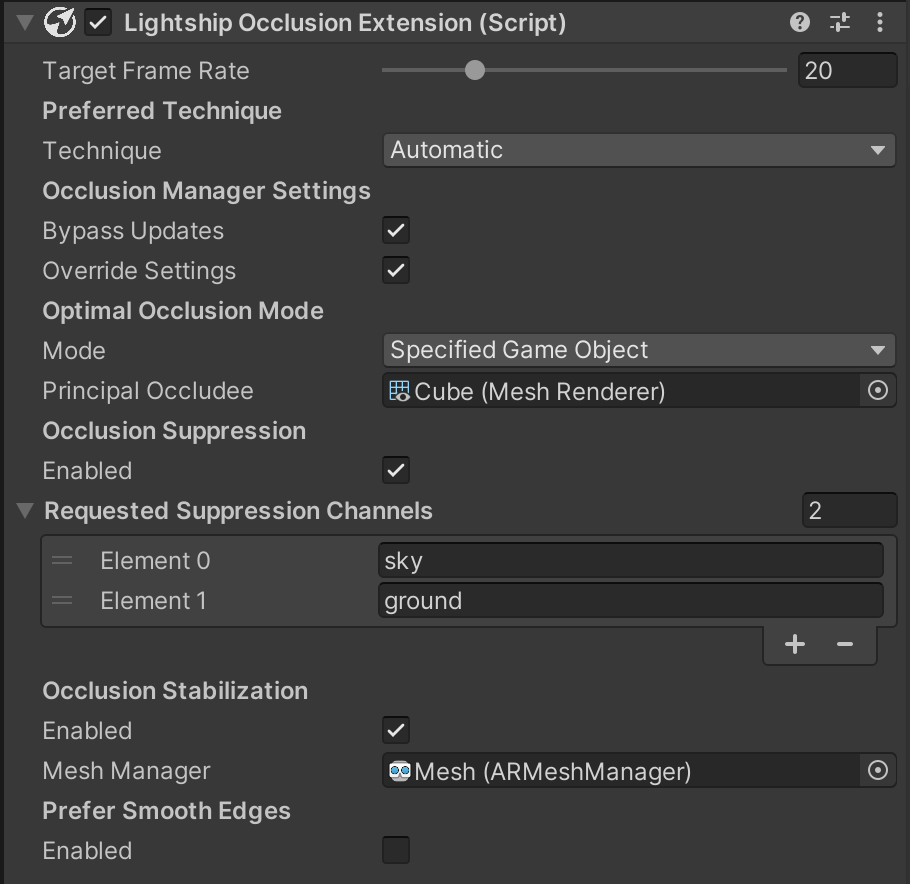
The extension has the following options:
- Preferred Occlusion Technique
- The occlusion technique determines the rendering methodoligy of occlusions. On most devices occlusion is achieved during rendering the camera background. However, some devices are true pass-through, meaning they do not draw the camera background at all, only virtual content. The following three options are available:
- Automatic: This mode tries to determine the best supported technique based on the running device.
- Z Buffer: Depth is written to the z-buffer during background rendering.
- Occlusion Mesh: This mode employs an invisible mesh created from depth, that occludes virtual content.
- The occlusion technique determines the rendering methodoligy of occlusions. On most devices occlusion is achieved during rendering the camera background. However, some devices are true pass-through, meaning they do not draw the camera background at all, only virtual content. The following three options are available:
- Occlusion Manager Settings
- These settings offer control over how the Lightship Occlusion Extension interacts with Unity's AR Occlusion Manager.
- Bypass Updates disables automatic updates of the AR Occlusion Manager's depth texture. This feature can be used to avoid redundant texture operations since depth is ultimately going to be overriden by the Lightship Occlusion Extension anyway. Not using this setting may result in undesired synchronization with the rendering thread that impacts performance.
- Override Settings allows the occlusion extension to override the occlusion manager's settings to set the most optimal configuration. The following overrides are applied:
- On iPhone devices with a lidar sensor, the
BestandMediumenvironment depth modes will cause a significant performance hit as well as a crash. NSDK overrides the Environment Depth Mode toFastestto avoid this issue and enables smooth edges for the best results. - The Occlusion Preference Mode is set to
No Occlusionwhen the occlusion extension is active.
- On iPhone devices with a lidar sensor, the
- These settings offer control over how the Lightship Occlusion Extension interacts with Unity's AR Occlusion Manager.
- Optimal Occlusion Mode
- The Optimal Occlusion mode determines how the depth buffer transforms between frames to provide occlusions. It has three modes:
- Closest Occluder samples objects from the whole screen and uses the depth value that is closest to the camera. This mode creates the most convincing occlusions when there is a variety of CG objects of similar size and importance on screen.
- Specified Game Object samples the distance to a particular CG asset set by Principal Occludee, providing best-quality occlusions for that specific object.
- Static samples the distance to the closest object in the entire depth texture. As the name implies, this mode is best used for objects that will not move.
- Principal Occludee determines which object to focus on when using the Specified Game Object occlusion mode. Setting this variable has no effect in Closest Occluder mode.
- The Optimal Occlusion mode determines how the depth buffer transforms between frames to provide occlusions. It has three modes:
- Occlusion Suppression
- Occlusion Suppression enables a user to reserve depth values to the far depth plane for specific semantic channels. This is useful for preventing noisy depth outputs from incorrectly occluding your model, such as occlusion flickering when objects are moving around on the ground.
- Requested Suppression Channels: the set of channels in the semantic buffer to use for suppression. Add the name of each channel as a separate name in the list. We recommend adding
groundandskyas a useful catch-all for many occlusion issues. For information on the semantic channels available, see the Semantics feature.
- Requested Suppression Channels: the set of channels in the semantic buffer to use for suppression. Add the name of each channel as a separate name in the list. We recommend adding
- Occlusion Suppression enables a user to reserve depth values to the far depth plane for specific semantic channels. This is useful for preventing noisy depth outputs from incorrectly occluding your model, such as occlusion flickering when objects are moving around on the ground.
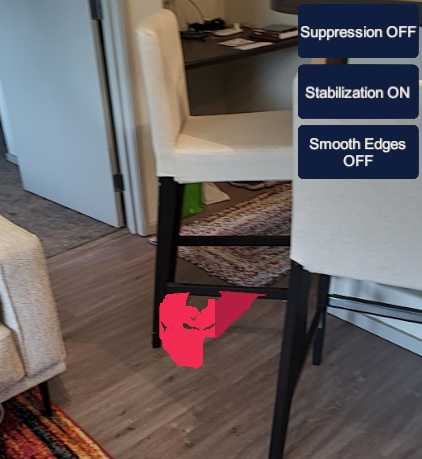
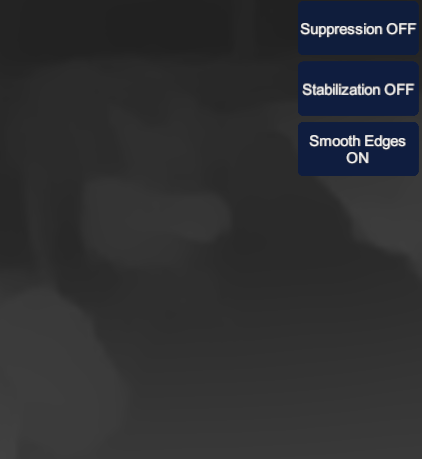
Occlusion suppression turned off
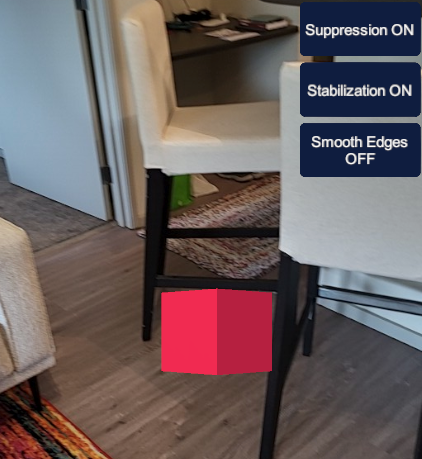
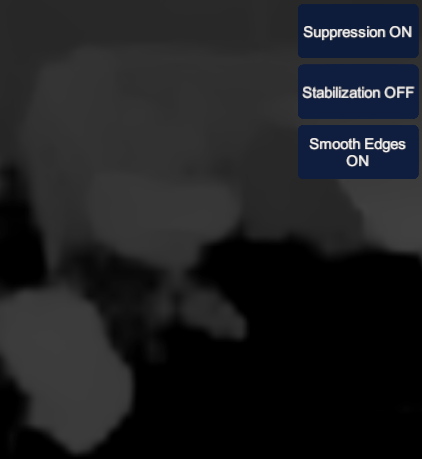
Occlusion suppression turned on. The ground is not present in the depth map and does not occlude the cube.
- Occlusion Stabilization
- Occlusion Stabilization smoothes the variance in the instantaneous depth buffer by combining it with a depth field rendered from the persistent mesh objects in the scene. This creates higher-quality occlusions with persistent parts of the scene.
- Mesh Manager: To use Occlusion Stabilization, attach an AR Mesh Manager here. See How to Set Up Real-World Occlusion for details.
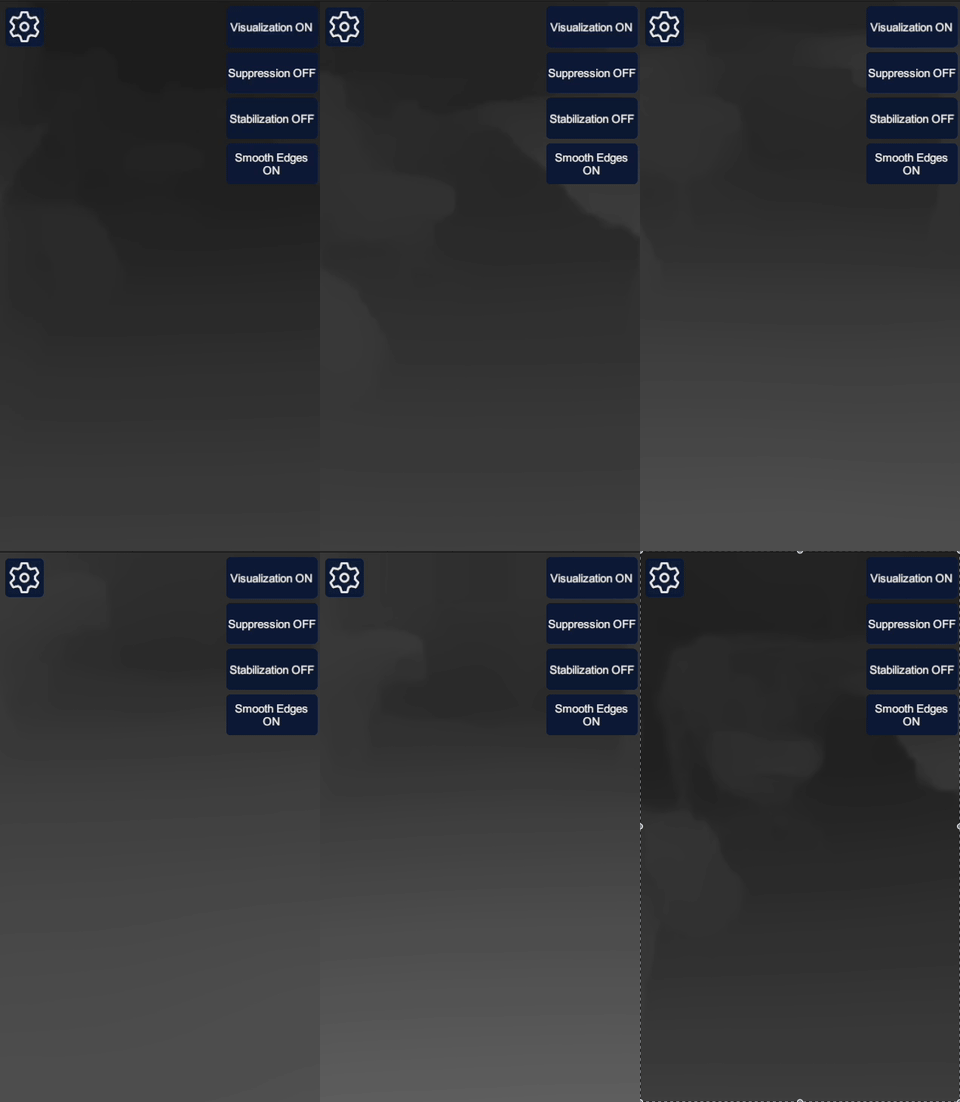
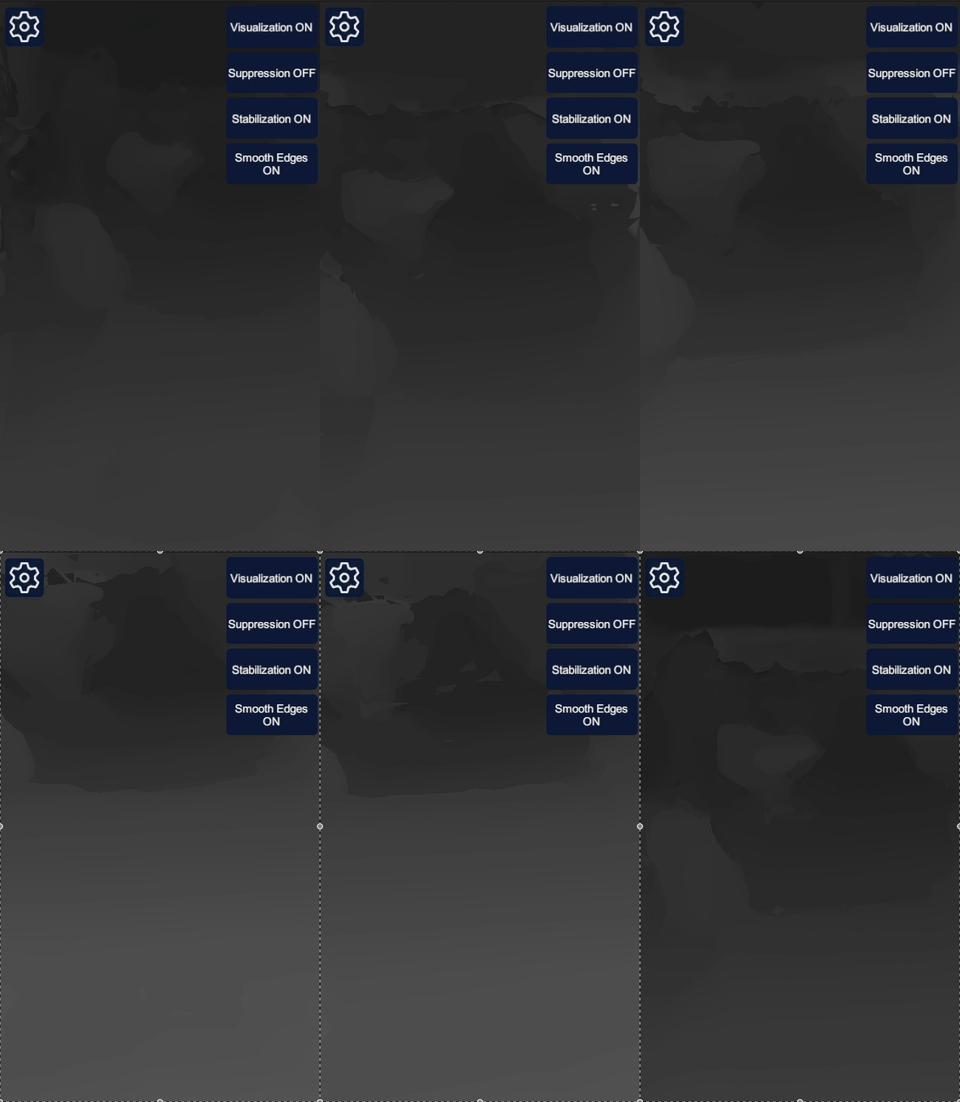
Left: Occlusion Stabilization turned off. Right: Occlusion Stabilization turned on. Note the persistence across frames.
- Prefer Smooth Edges
- When enabled, this feature samples the depth texture with a bilinear filter to smooth out edges on occluded objects. To enable smooth edges, either Occlusion Suppression or Occlusion Stabilization must also be enabled.
- Use Custom Background Material: This option appears if Preferred Technique is set to something other than
Automatic. If you want to write your own background shader using Niantic Spatial depth, scene segmentation and mesh input, you can attach a custom render material here.
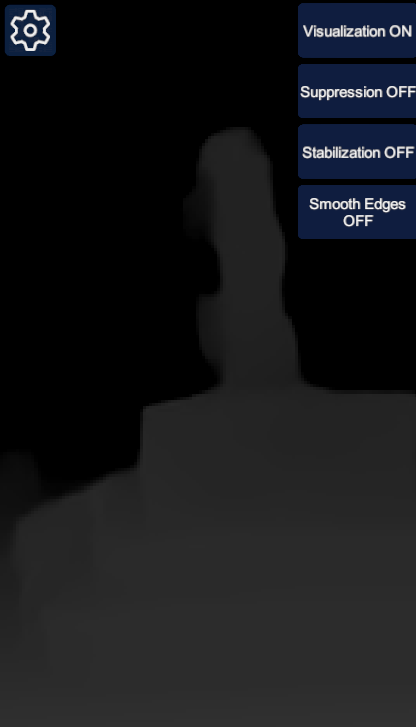
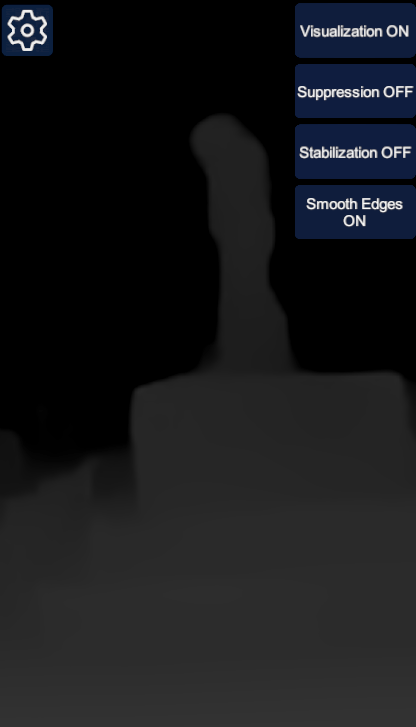
Left: No edge smoothing. Right: Edge smoothing turned on.
Known Limitations
In scenes that use both an AROcclusionManager and ARMeshManager, some Z-fighting can occur where the mesh distance and depth buffer are close but not equal, resulting in flickering. If you experience this, turn on Occlusion Stabilization to mitigate it.
More Information
For details on how to use this feature, see How to Setup Real-World Occlusion.