Project Validation
Niantic Spatial SDK enables the Unity Project Validation system to identify issues with NSDK, including configuration problems in Projects and Scenes. These checks complement ARKit/ARCore validations by making sure you have also met the NSDK requirements. We recommend using Project Validation to detect common issues before building your application.
Using Project Validation
To open the Project Validation menu, open the NSDK top menu in Unity, then select Project Validation.
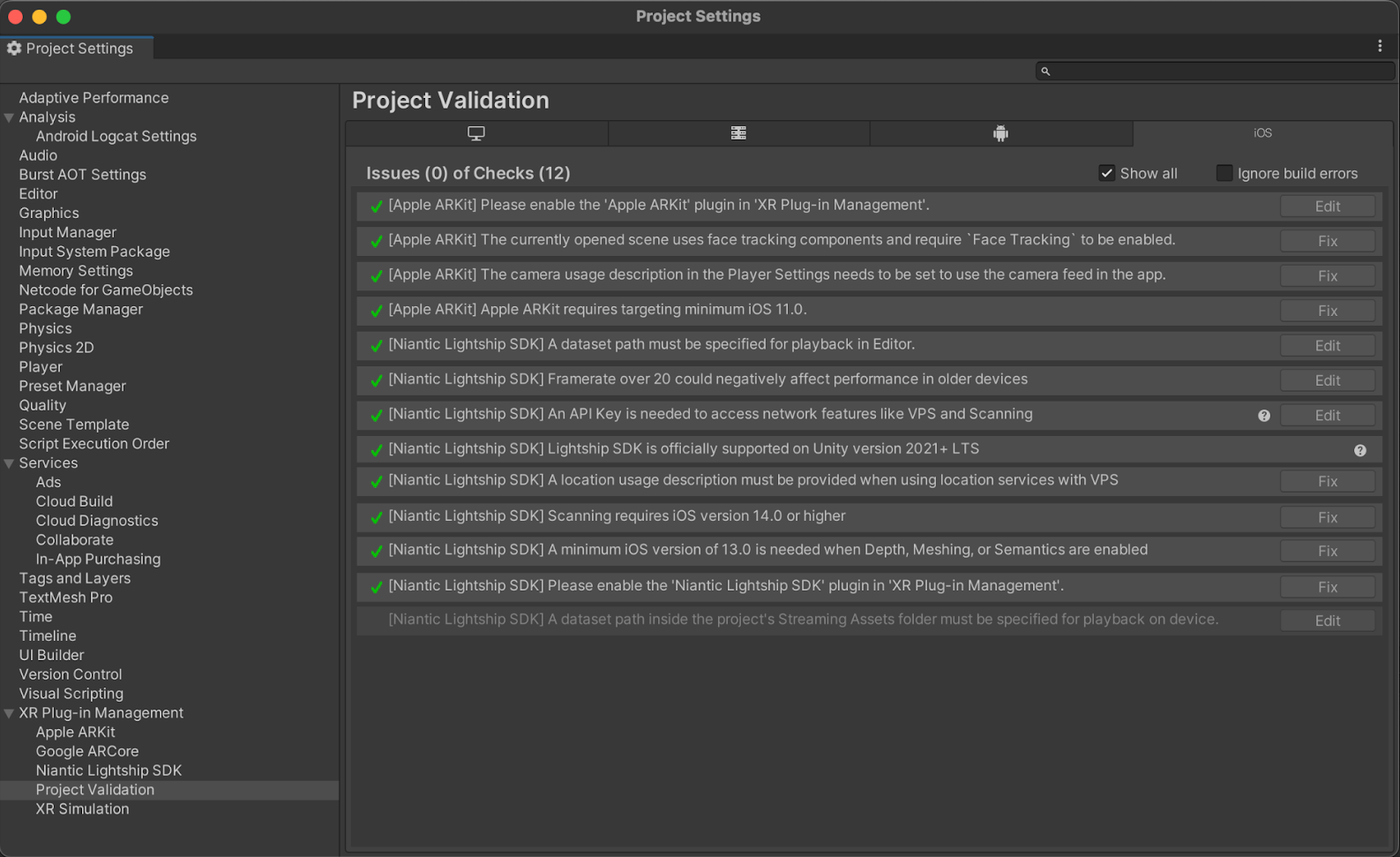
As in this example, Project Validation includes triggers from multiple sources, such as NSDK, Unity, ARKit, and ARCore. Some issues offer a Fix button for automatic adjustments, while others provide an Edit button that directs you to a window for manual corrections.
Common Project Validation Issues
Is NSDK activated?
If the NSDK plugin is not activated for the selected platform, a warning will appear:

Pressing the Edit button next to it opens the page where you can tick the checkbox to activate NSDK for that platform.
Is Authentication set up?
For more information, see the Auth guide.
Are the platform settings valid?
The system will check if all the settings required for this platform are valid and will present Fix buttons for things that can be fixed automatically by the system. Pressing the Fix All button in the top-right corner will fix all invalid settings that can be fixed automatically:
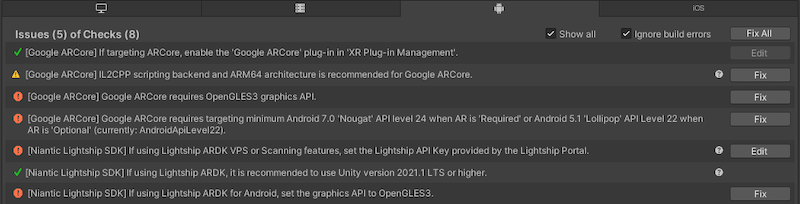
XR Plug-in Management Project Validation for Android displays two errors and two Fix buttons for setting the Graphics API to OpenGLES3, one from Google ARCore and one from NSDK. If this happens, click the NSDK Fix button to fix both issues.