How to set up playback
Description
This guide explains how to set up Playback so you can iterate in the Unity Editor instead of building to a device. Playback runs NSDK algorithms in the editor using a prerecorded ARSession dataset so you can play through your project on desktop as if it were running on a mobile device.
Prerequisites
You will need a Unity project with NSDK AR enabled and an AR scene configured. For more information, see Set up the Niantic SDK for Unity.
Steps
To set up Playback in the Unity Editor, complete the following steps:
- Download or create a Playback dataset — Obtain a dataset to simulate AR sessions in the editor.
- Verify that Niantic SDK is selected on the PC platform — Enable the correct XR plugin for editor playback.
- Enable Playback — Configure the dataset and playback settings in NSDK.
- Run Playback in the editor — Start playback and verify it works in the Game or Simulator view.
- Control playback manually — Step through frames to inspect behavior.
Download or create a Playback dataset
You can either download a sample Playback dataset or record your own using the NSDK recording pipeline. Playback datasets must be created this way because they bundle AR session tracking data together with images. Externally captured videos don’t contain this tracking information and can’t be converted into supported Playback datasets.
-
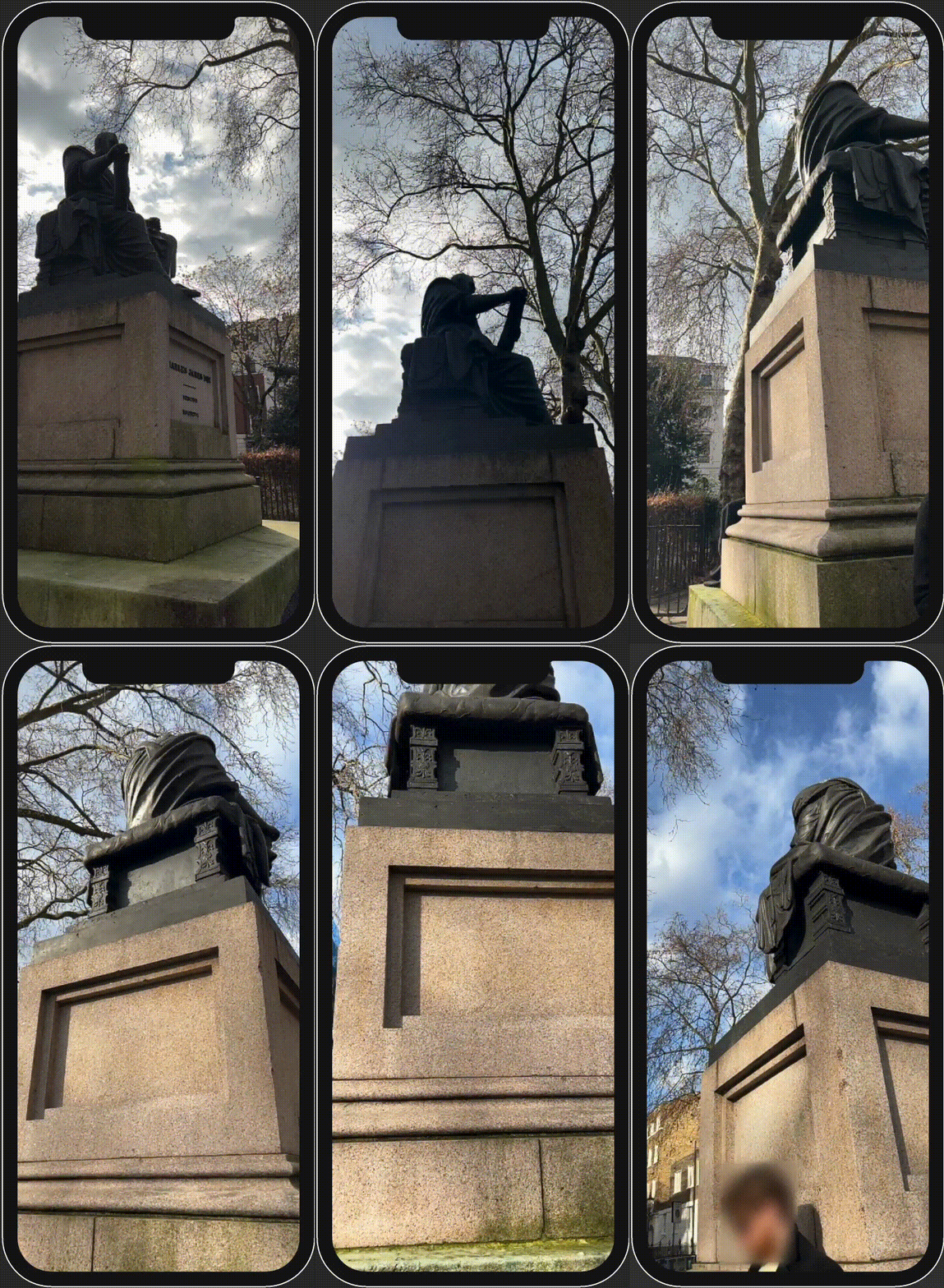
Download a sample Playback recording of the Gandhi statue shown at the top of the page, where a single user walks around the statue from one side: gandhi_statue.tgz. You can also download a second recording of the same statue captured from a different trajectory: gandhi_statue_peer_2.tgz. Use the second recording to simulate a second user or test alignment consistency across sessions.
-
To make your own Playback dataset, see How to Create Datasets for Playback.
- NSDK produces two formats of scan recordings, Raw Scan format and Playback format.
- Ensure that your scan recording is exported to Playback format (extracted from a .tgz archive, and metadata is contained in capture.json). Playback feature does not accept Raw Scan recordings, where metadata is contained in
*.pbfiles.
Verify that Niantic SDK is selected on the PC platform
- In Unity, open the Edit top menu, then select Project Settings.
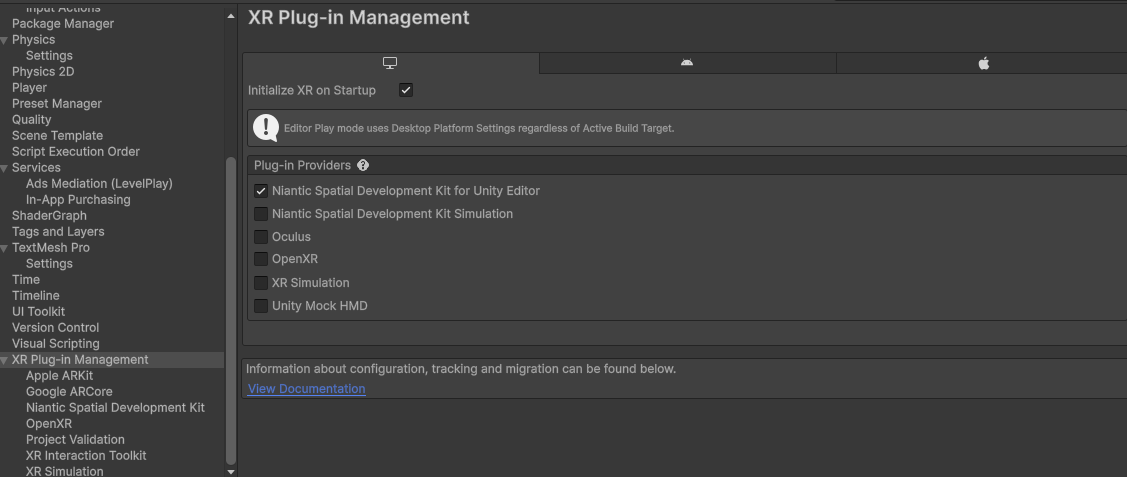
- Select XR Plug-in Management from the left-hand menu.
- In the XR Plug-in Management window, select the Desktop tab.
- Enable the
Niantic Spatial Development Kit for Unity Editorcheckbox.
Enable Playback
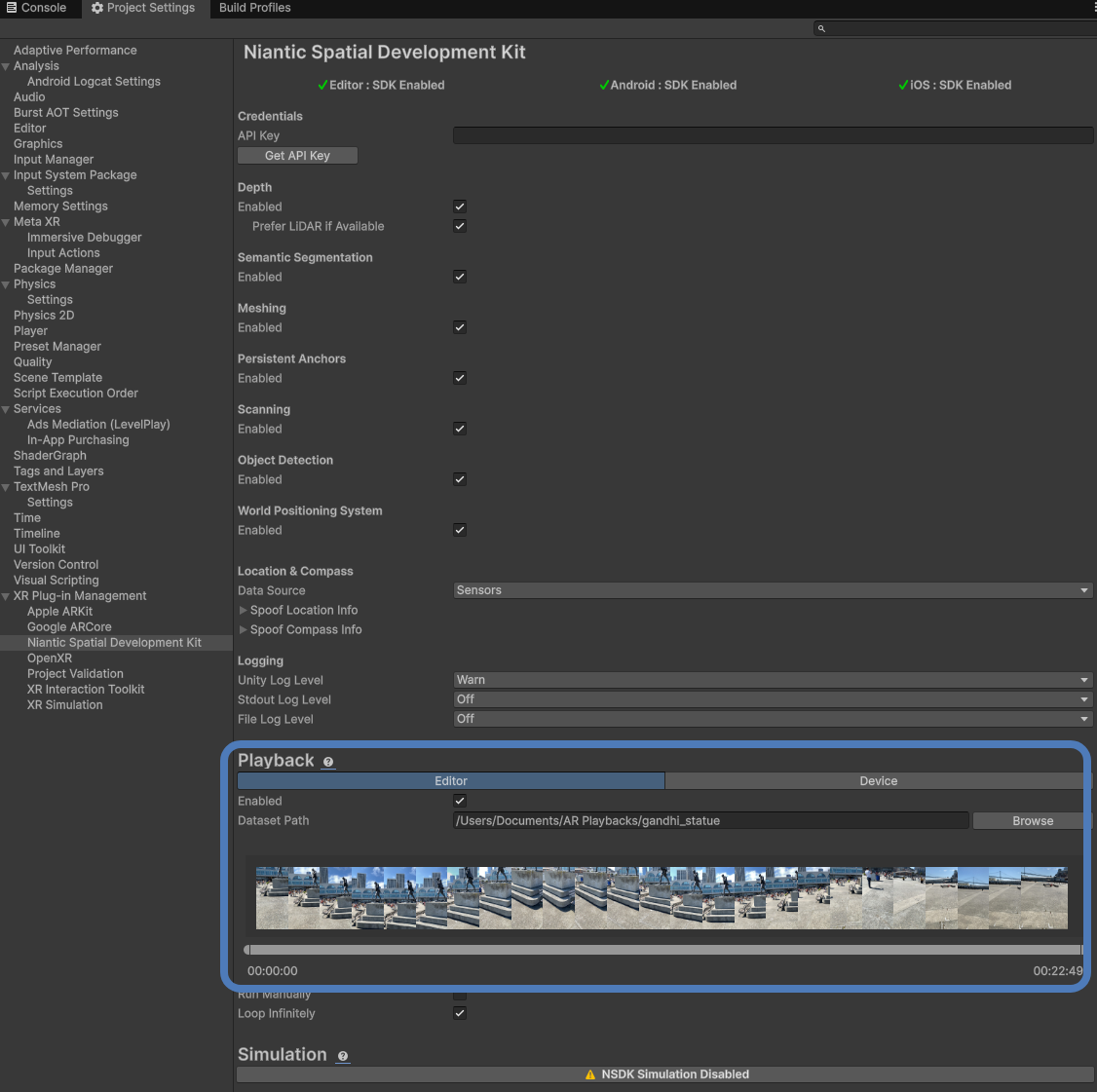
- Open the NSDK top menu, then select Settings to open the Niantic SDK Settings menu.
- Under the Playback header, with the Editor tab selected, check the Enabled box.
- Click the button to the right of the Dataset Path field to browse to the location of your Playback dataset. This can be located anywhere in your file system when using Playback in the Unity Editor. However, if you want to run Playback in a build, the files must be located inside your project’s StreamingAssets folder.
- You can optionally choose to play just a subset of the entire Playback by dragging the ends of the timeline scrubber. This will use only the selected portion of the overall Playback, with the chosen start and end frames highlighted.
Run Playback in the editor
Press Play, and the footage you selected should start playing in the editor. This can be seen from the Game or Simulator window in Unity. If it is not working, double-check the steps above and make sure to have added the ARSession and XROrigin from the XR menu to your scene.

Control Playback manually
If your recording moves through the environment too quickly (maybe you want to keep a point of interest on screen for longer), select the checkbox next to Run Manually to enable controls the next time you start Playback. Note that this does not stop Unity from running and updating MonoBehaviours.
Run Manually mode controls:
- Spacebar: step forward one frame
- Tap left arrow key: rewind one frame
- Hold left arrow key: scroll backward
- Tap right arrow key: advance one frame
- Hold right arrow key: scroll forward
Collect datasets for testing
Different recordings can be used to test different scenarios for your project, so you should maintain a variety of recordings at your disposal. See How to Create Datasets for Playback for more information.
Consider recording the following:
- Outdoors
- Indoors
- Large open space
- Activated VPS Wayspot
- Different sequences of the same location to help debug multiplayer
Using location services with Playback
Wherever you would use the UnityEngine.Input API normally, instead use NSDK's implementation by adding using Input = NianticSpatial.NSDK.AR.Input; to the top of your C# file. NSDK’s implementation uses the same API as Unity’s. When not running in Playback mode, it passes through to Unity’s APIs. When in Playback mode, it’ll supply the location data from the active dataset.