Authorization
Introduction
There are three ways to authorize your use of the Niantic Spatial Platform through NSDK, depending on your stage of development:
- Testing and evaluation: You want to quickly explore NSDK features with minimal setup, using the sample app without building your own integration or backend.
- Proof of concept: You want to build a larger demo or prototype that showcases Niantic Spatial features and can be used by others (including non-developers), without access to backend infrastructure or integrating your own identity system. This is not a production deployment.
- Production applications: You are building a production app for real users and need to integrate your own identity system with a secure backend for token management.
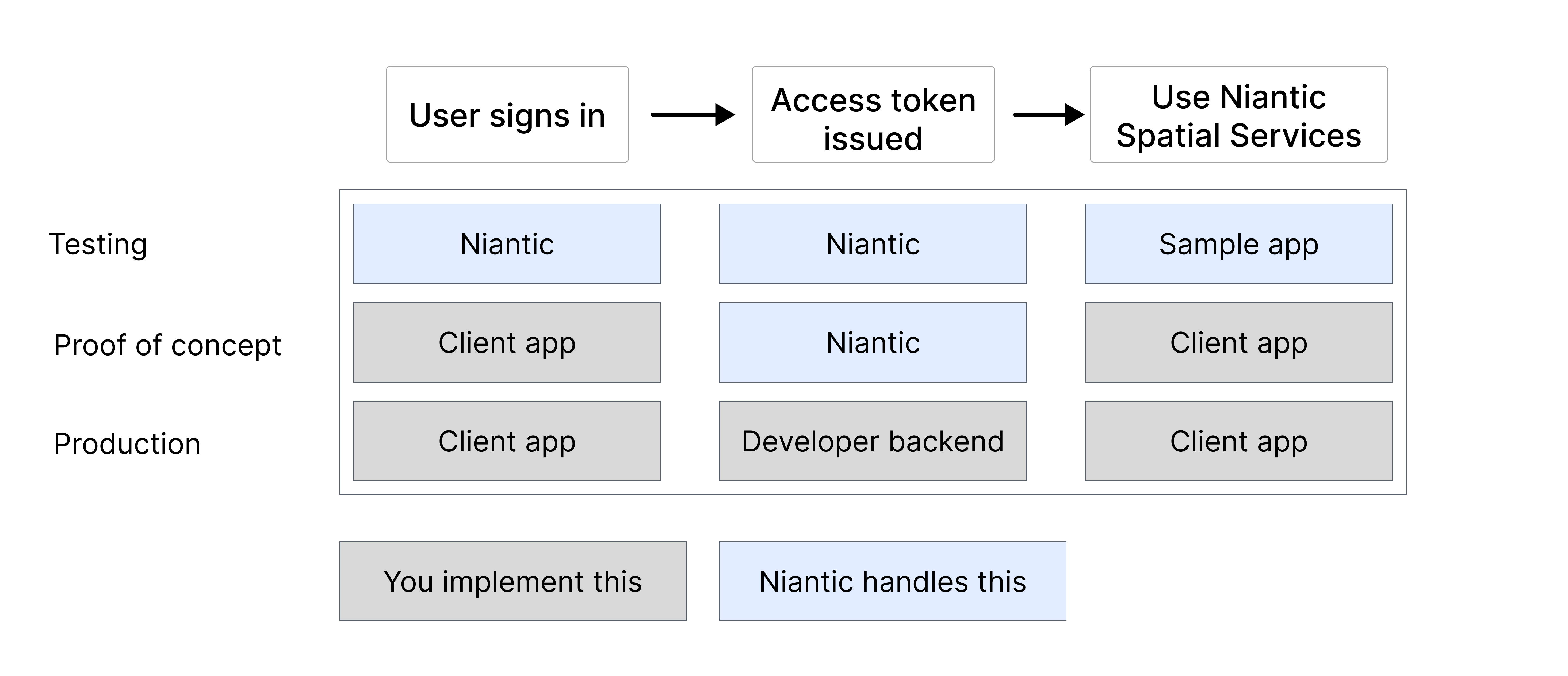
The following table summarizes these approaches:
| Development Stage | Authorization Solution | Who Handles Tokens | What Developer Does | Notes |
|---|---|---|---|---|
| Testing and evaluation | Use your Scaniverse account to log in to the sample app. | Sample app / Niantic Spatial Identity Service | Run the sample app, log in, explore NSDK features. No backend or API key required. | Tokens are managed automatically by the sample. |
| Proof of concept | Copy the sample login flow into your own app. | Client app using sample flow | Integrate sample login code into your app; test NSDK features locally. | No backend required; token handling is client-side. Supports local multi-user testing. |
| Production applications | Combine your own identity service with Niantic Spatial authorization. | Backend server + client | Implement full backend token flow; request, refresh, and validate access tokens in your app. | Requires service account and API key; enforces secure multi-user access and token expiration. |
Start with the testing flow first, which requires no backend server. Production applications require a backend server and a service account.
Testing and evaluation
The sample apps demonstrate the full login and token exchange flow used to authorize access to NSDK services. You can try the NSDK using sample apps for Swift, Kotlin, and Unity. Certain NSDK features require authentication tokens. The sample app handles all token management automatically.
During testing, try the sample app quickly to understand NSDK behavior as follows:
- Use the sample app as-is.
- Scaniverse login handles all tokens automatically.
- No backend, no API keys, no manual token handling.
The testing flow is summarized in the following table:
| Step | Actor | Action |
|---|---|---|
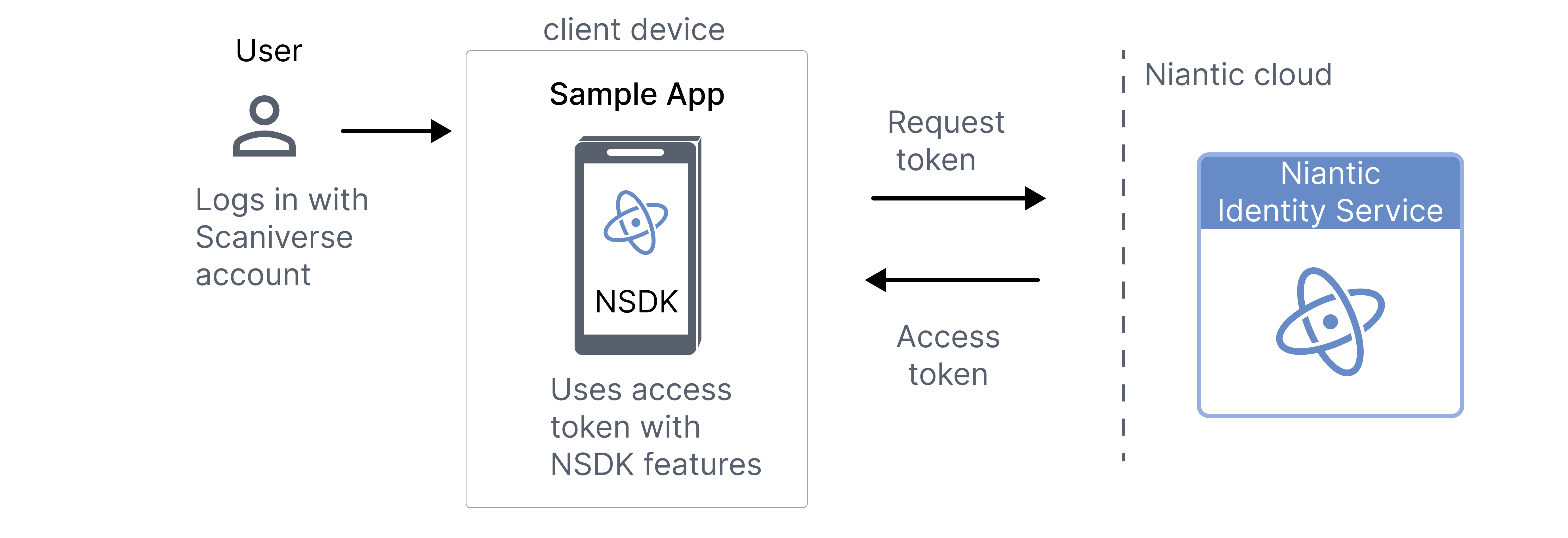
| 1 | User | Opens the sample app and logs in with a Scaniverse account. |
| 2 | Sample app | Requests authentication from the Niantic Spatial Identity Service. |
| 3 | Identity Service | Authenticates the user and returns an access token. |
| 4 | Sample app | Uses the access token to access NSDK-powered features. |
The sample app handles all token exchange internally. You do not need to manage tokens directly during testing.
The testing flow is shown graphically in the following workflow diagram:
To try the sample apps:
- Create a Scaniverse account.
- Follow the instructions through Build and run in the First Localization guide.
- Run the sample app. You’ll be prompted to log in with your Scaniverse account.
Access tokens are short-lived and are automatically refreshed by the sample using the refresh token. You do not need to manage tokens manually when using the sample apps.
Testing with the sample app does not require your own backend or API key. All token handling is internal to the sample.
Proof of concept
In the second stage of development, integrate the sample login flow into your own app. Test NSDK features and build a small prototype without setting up a backend as follows:
- Copy the sample login flow into your own app in either Swift, Kotlin, or Unity.
- Your app handles tokens automatically, as in the sample app, with no backend required.
- Token management is still client-side. You don't need a service account or an associated API key.
The proof of concept flow is summarized in the following table:
| Step | Actor | Action |
|---|---|---|
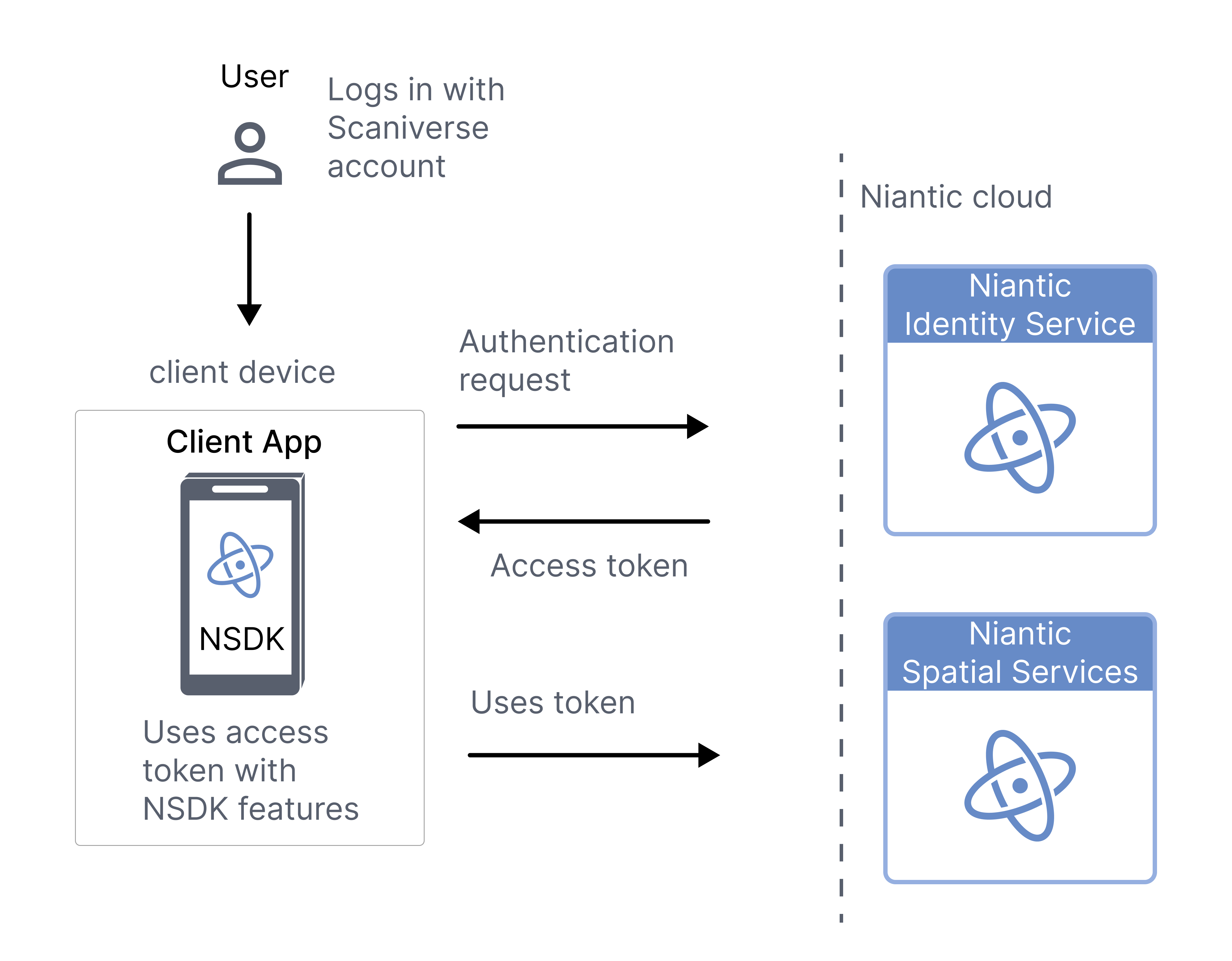
| 1 | User | Logs in to your app with a Scaniverse account. |
| 2 | Client app | Requests authentication from the Niantic Identity Service. |
| 3 | Identity Service | Returns an access token to the client app. |
| 4 | Client app | Uses the access token with NSDK features to access Niantic Spatial services. |
The proof of concept flow can also be shown visually in a workflow diagram:
Production applications
For production apps, implement a secure backend token flow to manage NSDK access. Unlike testing or proof-of-concept, tokens are handled by your backend, not the client. This ensures secure multi-user access and enforces token expiration.
When developing an app for production applications, build a full pipeline with proper security and a token flow:
- Implement your backend to generate and manage access tokens.
- The client requests tokens from your backend and passes them to NSDK.
- Your app handles multiple users securely and enforces token expiration.
The production flow is summarized in the following table:
| Step | Actor | Action |
|---|---|---|
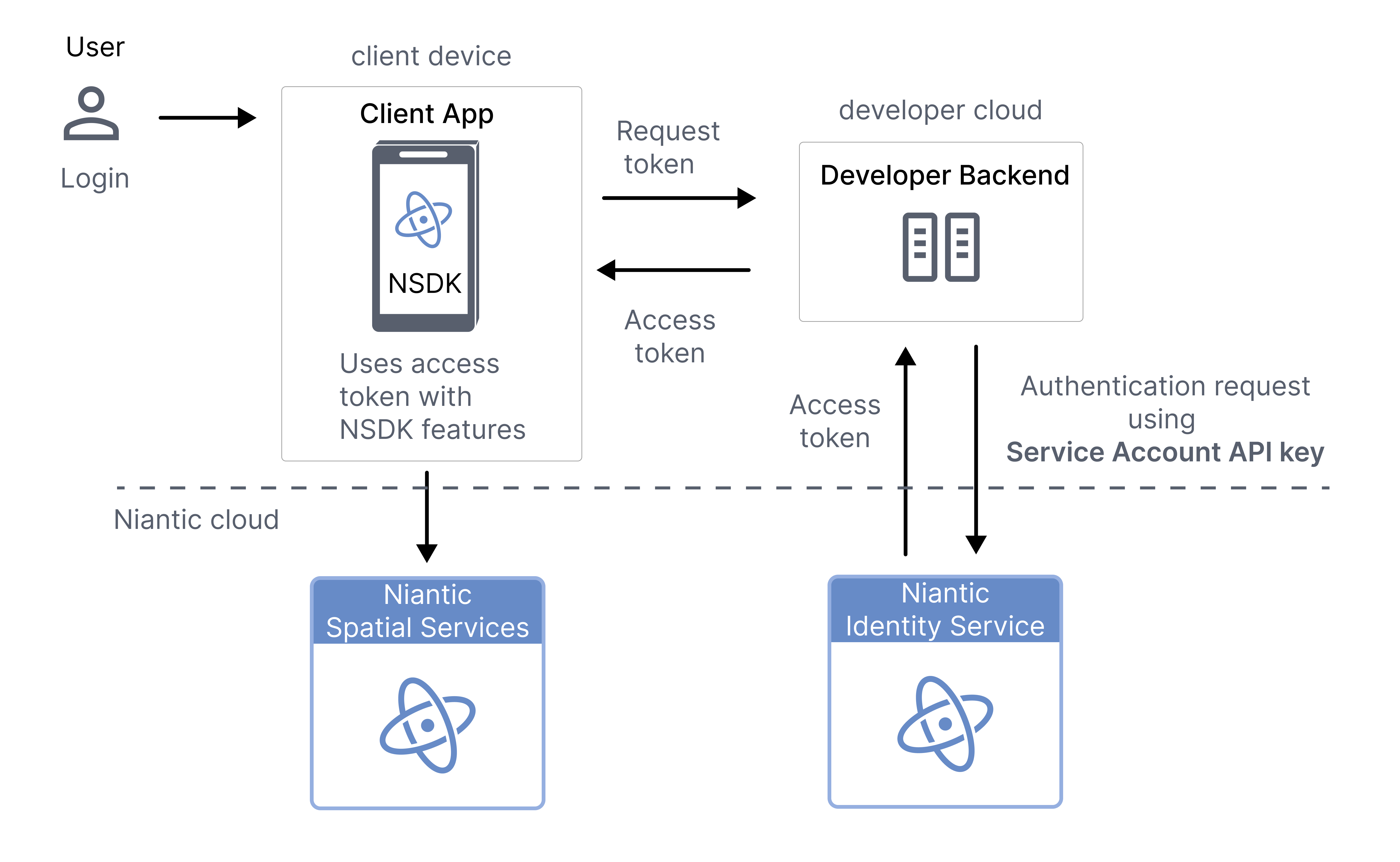
| 1 | User | Logs in to your app. |
| 2 | Client app | Requests an access token from your backend. |
| 3 | Developer backend | Uses a Service Account API key to request an access token from the Niantic Identity Service. |
| 4 | Identity Service and developer backend | The Identity Service returns an access token to your backend, which returns it to the client app. |
| 5 | Client app | Uses the access token with NSDK features to access Niantic Spatial services. |
The production flow can also be shown visually in a workflow diagram:
Next steps: backend and client code integration
When you’re ready to move beyond testing with the sample app, the NSDK workflow splits into two areas:
- The backend handles token issuance and management.
- The client integrates those tokens in your app.
Learn more from these detailed guides:
- Generate access tokens – How to issue, refresh, and manage production access tokens using your own backend service account.
- Client code integration – How to set, validate, and clear access tokens in Swift, Kotlin, and Unity apps.