Getting Started with Scaniverse
Scaniverse has evolved from a market-leading mobile 3D scanning app into a scalable spatial data ingestion service, enabling everyone from creators to field teams to capture and operationalize real-world environments with precision and at scale.
This quick guide walks you through creating a site, capturing scans, and turning them into production-ready spatial assets your team can use.
Step-by-Step Guide
Step 1: Create a Scaniverse Account
-
Sign up using your name and email address.
-
Open the verification email and click the link to activate your account.
-
Set your password and follow the prompts to create your organization.
-
Sign in to your account.
-
To invite teammates, click your profile → Account Settings → Organization, then send invitations to collaborate. They will receive an email with a link to accept the invitation and join your organization.
Step 2: Install the Scaniverse Mobile App
Scaniverse is the mobile app that allows you to capture your environment and manage your scans.
1. Install Scaniverse by scanning the provided QR code or visiting the App store page and the Google Play store page.

2. Open the app and on the Choose your experience screen, select New to access the latest features in Scaniverse, then tap Continue and sign in.

If you're already using Scaniverse's Classic experience, go to Library → Settings and select Discover the New Scaniverse.
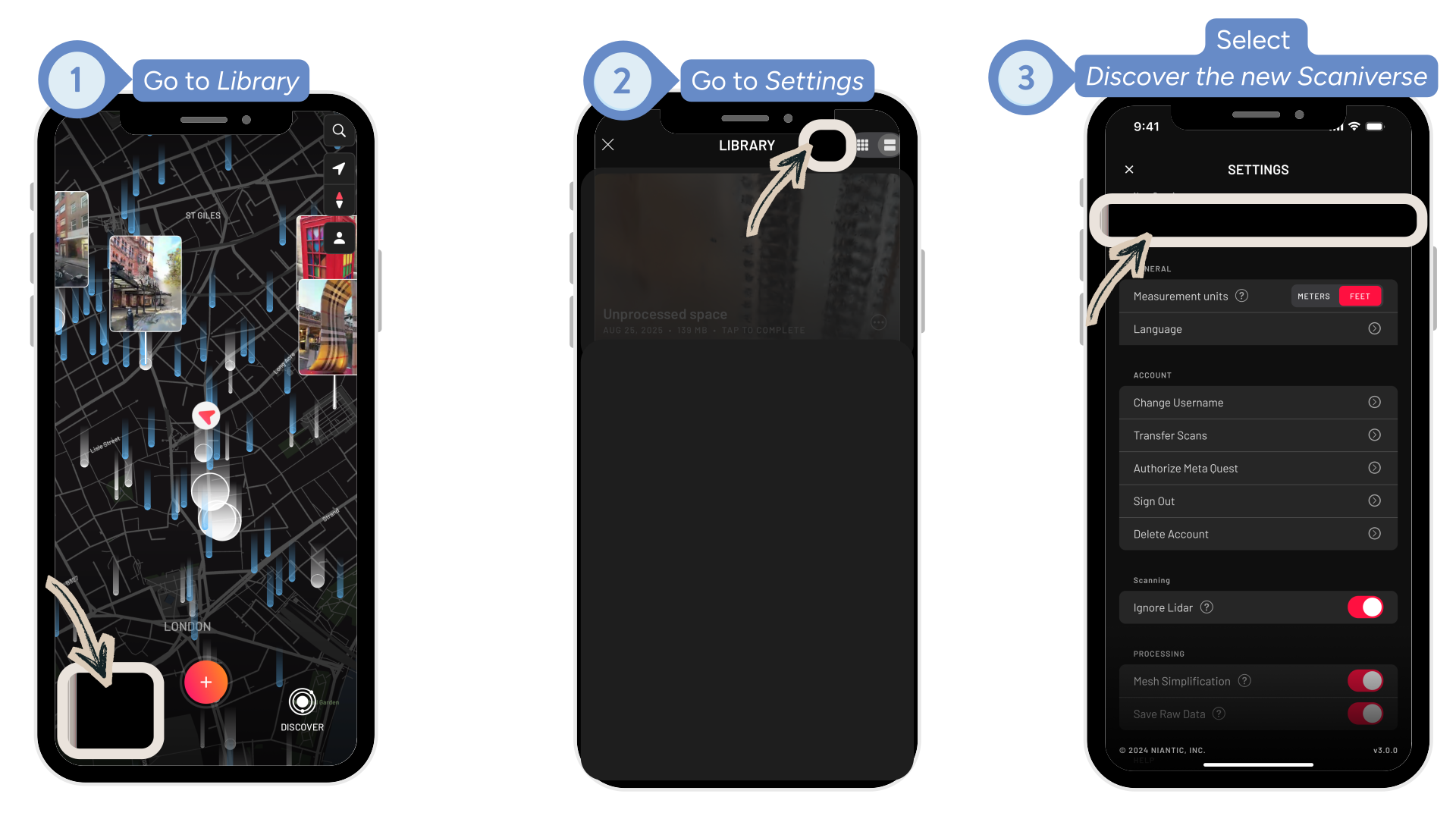
Step 3: Create Your First Site
A site represents a real-world place you want to capture and build against. Sites organize all scans, generated outputs, and versions for a location, making it easy to collaborate with others. This step can either be done in mobile or web.
-
Tap the button in the top right corner to +Add Site.
-
Enter a site name.
-
Save the site.
Step 4: Capture Scans on Mobile
-
In the mobile app, go to Scans and select +Capture.
-
The camera will open — tap Record to begin capturing.
-
Move through the space while recording, then stop when finished.
-
Review the scan. Preview what you captured, give it a clear, descriptive name and save.
-
After saving a scan, you can continue capturing additional scans to improve coverage or capture different areas of the site.
To help you capture higher-quality results, we recommend watching our tutorial video.
Step 5: Upload & Process
Once you’ve finished capturing scans for the site:
-
Go to Scans, then either select Upload all or open an individual scan to upload it specifically.
-
After upload starts, scans will upload and run through scan quality checks. Keep the app open until uploads complete.
Step 6: Generate Assets
In the web or mobile app, take one or more Passed scans from your site and generate them into a VPS map, mesh, and Gaussian splat.
-
Select Generate Assets.
-
Name the asset version.
-
Select the scans you want to include. Only scans that have passed validation will be available for selection.
-
Confirm the credits used for each asset type. To learn more about credit costs, explore our plans and pricing.
-
Confirm and wait for asset generation. Generation typically takes a few hours.
When complete, view the results in Assets.
Step 7: Test Localization
-
Visit the real-world location and test localization on mobile using the processed VPS map.
-
Download mesh assets from the web when you’re ready to use them to build your VPS experience.
Step 8: View Your Usage Dashboard
You can monitor your usage at any time in your dashboard.
Your free plan includes:
-
20,000 credits per month
-
5 users
Contact sales if you would like to increase your limits ahead of time.